

04 Dec, 2025
Google Launches Workspace Studio: Build Automated Gemini AI Agents Without Coding
Google has officially launched Workspace Studio, a new tool that helps users create automated AI agents powered by Gemini 3. This tool was first teased at Google I/O 2024 and announced earlier this year. Now, it is available for everyone.
What Is Workspace Studio?
Workspace Studio (previously called Workspace Flows) works like an “if this, then that” automation system. It connects directly with Google apps such as Gmail, Chat, Drive, Docs, and more. It can also integrate with third-party tools like Asana, Jira, Mailchimp, and Salesforce.
The best part?
No coding is required. Anyone can build automation flows in just a few minutes.
How Workspace Studio Helps
You can use Workspace Studio to automate daily tasks and complex workflows. There’s a new shortcut button (double-arrow icon) at the top-right corner of Google Workspace apps, right next to Gemini. It gives quick access to:
-
Discover
-
My agents
-
Activity
You can also open Workspace Studio directly at: studio.workspace.google.com
What Makes These Agents Powerful?
These agents don’t just follow strict rules. Thanks to Gemini 3, they can:
-
Understand context
-
Reason intelligently
-
Adapt to new information
-
Analyze sentiment
-
Generate content
-
Prioritize tasks
-
Send smart notifications
You can instruct them using plain language.
Example Prompt:
“If an email contains a question for me, label it as ‘To respond’ and notify me in Chat.”
Workspace Studio instantly creates this agent. Gemini can even extract details like action items or invoice numbers from emails and attachments.
You can also share agents with your team—just like sharing a Google Drive file.
How Agents Work
Each agent has three main parts:
-
Starters (Triggers)
-
Example: At a specific time, or when a new email arrives
-
You can filter triggers, such as emails from certain people
-
-
Steps (Actions)
-
Example: Draft a reply, add text to a document, extract information
-
-
Variables (Dynamic Data)
-
Example: The sender’s email, Gemini’s generated response, form inputs
-
Variables can be reused across the workflow
-
Who Can Use Workspace Studio?
Google aims to make custom AI automation accessible to every employee, without needing programming skills.
After alpha testing during Cloud Next 2025, Workspace Studio is now rolling out for:
-
Business Starter, Standard, Plus
-
Enterprise Starter, Standard, Plus
-
Education Fundamentals, Standard, Plus
-
Google AI Pro for Education
-
Google AI Ultra for Business
It will become available to users over the next few weeks.

06 Feb, 2025
How to Create React Native Web App : A Complete Guide
React Native offers a powerful way to create hybrid mobile applications that combine web content with native mobile features. Using WebViews, developers can embed web content while maintaining access to device capabilities like navigation, network detection, and native UI elements. This approach is ideal for:
-
Converting existing web projects to mobile apps
-
Progressive Web Apps (PWAs) with native enhancements
-
Content-focused applications requiring frequent updates
-
Prototyping cross-platform solutions quickly
Required Packages
Here are the key packages we'll use and their purposes:
-
Navigation
-
@react-navigation/native(v7.0.14) - Core navigation library -
@react-navigation/native-stack(v7.2.0) - Stack navigation -
react-native-screens(v4.6.0) - Native navigation components
-
-
WebView & UI
-
react-native-webview(v13.13.2) - Web content container -
react-native-progress(v5.0.1) - Loading indicators
-
-
Utilities
-
@react-native-community/netinfo(v11.4.1) - Network detection -
react-native-safe-area-context(v5.2.0) - Safe area handling
-
Step 1: Project Setup
Initialize your React Native project:
npx @react-native-community/cli@latest init webappproject
cd webappproject
Install required dependencies:
npm install @react-native-community/netinfo @react-navigation/native @react-navigation/native-stack react-native-progress react-native-webview react-native-safe-area-context react-native-screens
Step 2: Splash Screen Implementation
Create SplashScreen.jsx:
import { Dimensions, Image, StyleSheet, View } from 'react-native';
import React from 'react';
import logo from './logo.png';

const SplashScreen = () => (
  <View style={styles.container}>
    <Image source={logo} style={styles.logo} />
  </View>
);

const styles = StyleSheet.create({
  container: {
    flex: 1,
    justifyContent: 'center',
    alignItems: 'center',
    backgroundColor: '#2f2f55',
  },
  logo: {
    height: 150,
    width: 150,
    resizeMode: 'contain'
  },
});
Step 3: Main Application Structure (App.jsx)
import { useEffect, useState } from 'react';
import { NavigationContainer } from '@react-navigation/native';
import { createNativeStackNavigator } from '@react-navigation/native-stack';
import SplashScreen from './SplashScreen';
import MainScreen from './MainScreen';

const Stack = createNativeStackNavigator();

export default function App() {
  const [showSplash, setShowSplash] = useState(true);

  useEffect(() => {
    setTimeout(() => setShowSplash(false), 3000);
  }, []);

  return (
    <NavigationContainer>
      <Stack.Navigator screenOptions={{ headerShown: false }}>
        {showSplash ? (
          <Stack.Screen name="Splash" component={SplashScreen} />
        ) : (
          <Stack.Screen name="Main" component={MainScreen} />
        )}
      </Stack.Navigator>
    </NavigationContainer>
  );
}
Step 4: WebView Screen with Advanced Features (MainScreen.jsx)
import React, { useRef, useState, useEffect } from 'react';
import { BackHandler, StyleSheet, View, Alert } from 'react-native';
import WebView from 'react-native-webview';
import ProgressBar from 'react-native-progress/Bar';
import NetInfo from '@react-native-community/netinfo';

const MainScreen = () => {
  const webViewRef = useRef(null);
  const [progress, setProgress] = useState(0);
  const [loaded, setLoaded] = useState(false);
  const [canGoBack, setCanGoBack] = useState(false);
  const [isOnline, setIsOnline] = useState(true);

  // Network detection
  useEffect(() => {
    const unsubscribe = NetInfo.addEventListener(state => {
      setIsOnline(state.isConnected);
      if (!state.isConnected) {
        Alert.alert('Offline', 'Internet connection required');
      }
    });
    return () => unsubscribe();
  }, []);

  // Android back button handling
  useEffect(() => {
    const backHandler = BackHandler.addEventListener(
      'hardwareBackPress',
      () => {
        if (canGoBack && webViewRef.current) {
          webViewRef.current.goBack();
          return true;
        }
        return false;
      }
    );
    return () => backHandler.remove();
  }, [canGoBack]);

  return (
    <View style={styles.container}>
      {!loaded && (
        <View style={styles.loadingContainer}>
          <ProgressBar
            progress={progress}
            width={null}
            color="#2f2f55"
            style={styles.progress}
          />
        </View>
      )}

      <WebView
        ref={webViewRef}
        source={{ uri: 'https://your-web-app-url.com' }}
        onLoadProgress={({ nativeEvent }) => setProgress(nativeEvent.progress)}
        onLoadEnd={() => setLoaded(true)}
        onNavigationStateChange={navState => setCanGoBack(navState.canGoBack)}
        startInLoadingState={true}
        javaScriptEnabled={true}
        domStorageEnabled={true}
      />
    </View>
  );
};
Key Features Explained
-
Splash Screen Transition
-
3-second timer using
setTimeout -
Smooth navigation transition using React Navigation
-
-
Network Detection
-
Real-time connection monitoring with NetInfo
-
Automatic alerts when offline
-
-
WebView Enhancements
-
Loading progress visualization
-
Back button navigation within WebView history
-
Native error handling
-
-
Android Back Button
-
Double-tap exit confirmation
-
WebView history navigation support
-
Final Considerations
-
Performance Optimization
-
Add WebView caching strategies
-
Implement error boundaries
-
Use loading spinners during navigation
-
-
Platform-Specific Tweaks
npx react-native run-android
npx react-native run-ios
-
Security Enhancements
-
Add SSL pinning
-
Implement content security policies
-
Use WebView user agent detection
-
This approach provides a solid foundation for hybrid mobile apps. Remember to test thoroughly across different network conditions and device sizes.

20 Jul, 2024
Conquer CORS Errors in Your Next.js App: A Guide to Smooth Sailing
This blog post tackles a common challenge in Next.js applications: Cross-Origin Resource Sharing (CORS) errors and fetching data from an API. We'll provide a step-by-step approach with code snippets to ensure smooth communication between your frontend and backend.
Here's the Code Breakdown:
1. Next.js API Route (users.js):
import { NextResponse } from "next/server";

export function GET() {

  try {

    return NextResponse.json([

      { name: "Testing 1", branch: "CS" },

      { name: "Testing 2", branch: "CS" },

    ]);

  } catch (err) {

    console.log(err);

  }

}
This code defines a basic API route named /api/users that responds to GET requests. It returns a pre-defined list of users in JSON format and includes error handling for logging any issues.
2. CORS Middleware (middleware.js):
import { NextResponse } from 'next/server'

const allowedOrigins = ['http://localhost:3000']; // Replace with your allowed origins

const corsOptions = {

  'Access-Control-Allow-Methods': 'GET, POST, PUT, DELETE, OPTIONS',

  'Access-Control-Allow-Headers': 'Content-Type, Authorization',

}

export function middleware(request) {

  // Check the origin from the request

  const origin = request.headers.get('origin') ?? ''

  const isAllowedOrigin = allowedOrigins.includes(origin)

  // Handle preflighted requests

  const isPreflight = request.method === 'OPTIONS'

  if (isPreflight) {

    const preflightHeaders = {

      ...(isAllowedOrigin && { 'Access-Control-Allow-Origin': origin }),

      ...corsOptions,

    }

    return NextResponse.json({}, { headers: preflightHeaders })

  }

  // Handle simple requests

  const response = NextResponse.next()

  if (isAllowedOrigin) {

    response.headers.set('Access-Control-Allow-Origin', origin)

  }

  Object.entries(corsOptions).forEach(([key, value]) => {

    response.headers.set(key, value)

  })

  return response

}

export const config = {

  matcher: '/api/:path*',

}
This middleware plays a crucial role in enabling CORS. It defines allowed origins (allowedOrigins) and allowed methods/headers (corsOptions). The code checks the request origin and method:
- For preflight requests (OPTIONS method), it verifies if the origin is allowed and sets appropriate CORS headers.
- For simple requests, it adds necessary CORS headers to the response based on the origin and
corsOptions.
Important Note: Remember to replace 'http://localhost:3000' with your actual allowed origins for production environments. Allowing all origins with '*' is for development purposes only.
3. React Component (App.js):
import axios from 'axios'

import React from 'react'

import { useEffect } from 'react'

const App = () => {

  const findUser = async () => {

    try {

      const res = await axios.get('http://localhost:3000/api/users')

      console.log(res.data);

    } catch (error) {

      console.log(error)

    }

  }

  useEffect(()=>{

    findUser()

  },[])

  return (

    <div>App</div>

  )

}

export default App
This React component demonstrates fetching users from the API route using axios. The findUser function utilizes axios.get to retrieve user data from the /api/users endpoint. The response data is then logged to the console. Error handling is included (try...catch) to manage any potential errors during the fetch process.
By implementing these steps, you'll have a robust system for fetching data from your Next.js API routes while ensuring secure communication across origins.

06 Jul, 2024
How to Upload Images in React Native with Firebase
In this tutorial, we will explore how to integrate Firebase Storage with a React Native application to enable image uploading functionality. Firebase provides a robust backend infrastructure, making it seamless to store and retrieve files like images.
Prerequisites
Before we begin, make sure you have the following installed and set up:
- Node.js and npm (Node Package Manager)
- React Native development environment
- Firebase account and a Firebase project set up
- Basic knowledge of React Native and JavaScript
Step 1: Setting Up Firebase Storage
First, install Firebase and the necessary Firebase modules for storage:
npm install @react-native-firebase/app @react-native-firebase/storage
Configure Firebase in your React Native project as per the Firebase documentation.
Step 2: Creating the Image Picker Component
Now, let's create a component that allows users to pick an image from their device:
import React, { useState } from 'react';

import { View, Button, Image, StyleSheet, Alert } from 'react-native';

import { launchImageLibrary } from 'react-native-image-picker';

import storage from '@react-native-firebase/storage';

const ImageUploadScreen = () => {

  const [imageUri, setImageUri] = useState(null);

  const pickImage = async () => {

    const result = await launchImageLibrary({

      mediaType: 'photo',

      maxWidth: 1024,

      maxHeight: 1024,

      quality: 0.8,

    });

    if (!result.didCancel) {

      setImageUri(result.assets[0].uri);

    }

  };
  const uploadImage = async () => {

    if (imageUri) {

      const filename = imageUri.substring(imageUri.lastIndexOf('/') + 1);

      const reference = storage().ref(filename);

      const task = reference.putFile(imageUri);

      try {

        await task;

        const url = await reference.getDownloadURL();

        Alert.alert(

          'Upload Successful',

          'Your image has been uploaded successfully.'

        );

        console.log('Image URL: ', url);

      } catch (e) {

        console.error(e);

        Alert.alert(

          'Upload Failed',

          'An error occurred while uploading the image.'

        );

      }

    } else {

      Alert.alert('No Image Selected', 'Please select an image first.');

    }

  };

  return (

    <View style={styles.container}>

      <Button title="Pick Image" onPress={pickImage} />

      {imageUri && <Image source={{ uri: imageUri }} style={styles.image} />}

      <Button title="Upload Image" onPress={uploadImage} />

    </View>

  );

};

const styles = StyleSheet.create({

  container: {

    flex: 1,

    justifyContent: 'center',

    alignItems: 'center',

  },

  image: {

    width: 200,

    height: 200,

    marginVertical: 20,

  },

});

export default ImageUploadScreen;
Step 3: Explanation
Firebase Storage Integration: Firebase Storage allows you to store user-generated content, such as images, directly from your mobile app.
Image Picker: We use react-native-image-picker to enable users to select images from their device’s gallery.
Upload Process: The uploadImage function handles uploading the selected image to Firebase Storage. It retrieves the image URI, uploads it, and retrieves the download URL upon successful upload.
Step 4: Conclusion
In this tutorial, we covered the basics of integrating Firebase Storage with a React Native application for image uploading. You can further enhance this functionality by adding error handling, progress indicators, and integrating with other Firebase services like Firebase Authentication for user-specific uploads.
Summary
By following these steps, you can empower your React Native applications with image uploading capabilities using Firebase Storage, providing a seamless and scalable solution for handling user-generated content.

01 Jun, 2024
CKeditor5 image upload option in Laravel 11
we will guide you through the process of integrating CKEditor 5 with image upload functionality in your Laravel 11 application. CKEditor 5 is a powerful and versatile rich text editor that allows you to include various types of content in your web applications, including images. Let’s dive into the steps required to set this up.
Step 1: Add a Textarea with CKEditor ID
First, we need to add a textarea to our form and assign it an ID of ckeditor. This ID will be used to initialize CKEditor on this textarea.
Here's how you can add the textarea in your Blade view file:
<textarea name="description" id="ckeditor" class="form-control" placeholder="Description goes here..">{{ old('description') }}</textarea>
This textarea will serve as the input field where users can write and format their text, as well as upload images.
Step 2: Include CKEditor 5 from CDN
Instead of installing CKEditor 5 using npm, we will include it directly from a CDN. Add the following script to your Blade view file:
<script src="https://cdn.ckeditor.com/ckeditor5/41.4.2/classic/ckeditor.js"></script>
This script includes CKEditor 5 from the official CDN.
Step 3: Initialize CKEditor 5
Now, we need to initialize CKEditor 5 on our textarea. To do this, add the following JavaScript code to your Blade view file. You can place this code at the bottom of your view file or in a separate JavaScript file.
<script src="https://cdn.ckeditor.com/ckeditor5/41.4.2/classic/ckeditor.js"></script>


    <script>


      ClassicEditor


          .create( document.querySelector( '#ckeditor' ),{


            ckfinder:{


              uploadUrl:"{{route('ckeditor.upload',['_token'=>csrf_token()])}}",


            },


          } )


          .catch( error => {


              console.error( error );


          } );


  </script>
This script initializes CKEditor on the textarea with the ID ckeditor and configures it to use the image upload URL.
Step 4: Create the Image Upload Route and Controller Method
Next, we need to create a route and a controller method to handle the image upload. Add the following route to your web.php routes file:
Route::post('/ckeditor/upload', [App\Http\Controllers\CKEditorController::class, 'upload'])->name('ckeditor.upload');
Now, create a new controller named CKEditorController if you don't have one already, and add the following method to handle the image upload:
namespace App\Http\Controllers;
use Illuminate\Http\Request;

use Illuminate\Support\Facades\Storage;

use Illuminate\Support\Facades\Validator;

class CKEditorController extends Controller

{


 public function upload(Request $req)

    {


        if($req->hasFile('upload')):


            $image=$req->file('upload');


            $ext=$image->extension();


            $file=time().'.'.$ext;


            $image->move('uploads/',$file);


            $url = asset('uploads/'.$file);


            return response()->json(['fileName'=>$file,'uploaded'=>1,'url'=>$url]);


        endif;


    }


}
This method validates the uploaded image, stores it in the public/uploads directory, and returns the URL of the uploaded image in JSON format.
Step 5: Test the CKEditor
Now, you should be able to use CKEditor 5 with image upload functionality in your Laravel 11 application. Open your form in the browser, add some text, and try uploading an image. The image should be uploaded to the public/uploads directory and displayed within the editor.
Conclusion
By following these steps, you have successfully integrated CKEditor 5 with image upload functionality into your Laravel 11 application using a CDN. This setup allows users to write rich text content and upload images directly within the text editor. CKEditor 5 offers a robust and user-friendly interface, making it a great choice for any web application that requires rich text editing capabilities.
Happy coding!

25 May, 2024
How to Generate Digital Signature in React JS
In the digital age, ensuring the authenticity and integrity of documents and messages is paramount. Digital signatures provide a robust way to verify the identity of the sender and ensure the data has not been tampered with. This blog will guide you through the process of generating a digital signature in a React JS application.
What is a Digital Signature?
A digital signature is a mathematical scheme for verifying the authenticity of digital messages or documents. It uses cryptographic techniques to ensure that a message has been created by a known sender and that it has not been altered in transit.
Prerequisites
Before we dive into the implementation, ensure you have the following:
- Basic knowledge of React JS.
- Node.js and npm installed on your machine.
- A text editor or an IDE like Visual Studio Code.
Setting Up the React Project
First, let's create a new React application. Open your terminal and run the following command:
npx create-react-app digital-signature-app


cd digital-signature-app
Next, we need to install the react-signature-canvas package, which will help us generate the digital signature. Run the following command to install it:
npm install react-signature-canvas
Creating the Digital Signature Component
Now, let's create a component to handle the digital signature generation. Create a new file named DigitalSignature.js inside the src folder and add the following code:
import React, { useState } from 'react'

import SignatureCanvas from 'react-signature-canvas'

const DigitalSignature = () => {

  const [penColor,setPenColor] = useState('black')

  const [signature,setSignature] = useState()

  const [result, setResult] = useState(null)

  const handlerClear = () =>{

    signature.clear()

    setResult(null)

  }

  const handlerSave = () =>{

    const res = signature.getTrimmedCanvas().toDataURL('image/jpeg')

    setResult(res)

  }

  return (

    <div>

   <select value={penColor} onChange={(e)=>setPenColor(e.target.value)}>

   <option value="red">Red</option>

   <option value="green">Green</option>

   <option value="black">Black</option>

   </select>

   <div style={{height:'20px',width:'20px',borderRadius:'50%',background:${penColor}}}>

   </div>

   <div style={{width: 500, height: 200,border:1px solid ${penColor}}} >

   <SignatureCanvas

   penColor={penColor}

   ref={(ref) => setSignature(ref)}

   canvasProps={{width: 500, height: 200, className: 'sigCanvas'}}

   backgroundColor="rgba(255,255,255,1)"

   />

   </div>

   <button onClick={handlerClear}>Clear</button>

   <button onClick={handlerSave}>Save</button>

   {

    result && (

      <div>

      <img src={result}/>

      <a href={result} download>

      Download

      </a>

      </div>

    )

   }


    </div>

  )

}

export default DigitalSignature
Using the Component in Your App
To use this component in your application, open the App.js file and import the DigitalSignature component:
import React from 'react';

import DigitalSignature from './DigitalSignature';

import './App.css';

function App() {

  return (

    <div className="App">

      <header className="App-header">

        <h1>Digital Signature Generator</h1>

        <DigitalSignature />

      </header>

    </div>

  );

}

export default App;
Running the Application
Now, let's run the application to see it in action. In your terminal, execute the following command:
npm start
Open your browser and navigate to http://localhost:3000. You should see the Digital Signature Generator interface.
Conclusion
You've now built a simple digital signature generator in React JS. Digital signatures are essential for maintaining the integrity and authenticity of digital communications, and with this setup, you can integrate them into your applications.

24 May, 2024
How to Generate Certificate in React JS
Creating a certificate generation feature in a React application can be a valuable addition, especially for educational platforms, events, and workshops. This blog post will guide you through the steps to generate certificates using React JS.
Prerequisites
Before we start, make sure you have the following:
- Basic understanding of React JS.
- Node.js and npm installed on your machine.
- A React application set up. You can create one using
create-react-appif you don't have an existing project.
Set Up Your React Project
If you don’t have a React project set up, create one using the following command:
npx create-react-app certificate-generator


cd certificate-generator
You will need a few libraries to handle image manipulation. Install this using npm:
npm install html-to-image
Create a new file Certicate.js:
import React from 'react'

import './certificate.css'

import certificateTemplate from  './certificate.png'

import { useState, useCallback, useRef  } from 'react'

import { toPng } from 'html-to-image';

const Certicate = () => {

    const ref = useRef(null)

    const [name,setName] = useState('')

    const [course,setCourse] = useState('')

    const onButtonClick = useCallback(() => {

        if (ref.current === null) {

          return

        }


        toPng(ref.current, { cacheBust: true, })

          .then((dataUrl) => {

            const link = document.createElement('a')

            link.download = 'certificate.png'

            link.href = dataUrl

            link.click()

          })

          .catch((err) => {

            console.log(err)

          })

      }, [ref])

  return (

    <div>

    <input type='text' placeholder='Enter Name' value={name} onChange={(e)=>setName(e.target.value)}/>

    <input type='text' placeholder='Enter course' value={course} onChange={(e)=>setCourse(e.target.value)}/>

    <div className='container' ref={ref}>

    <img src={certificateTemplate} height={400}/>

    <div className='content'>

    <h1>{name}</h1>

    <p>{course}</p>

    </div>

    </div>

    <button onClick={onButtonClick}>Click me</button>

    </div>

  )

}


export default Certicate
Create the CSS file certificate.css for styling:
.container{

    height: 400px;

    width: 560px;

    /* background: red; */

    position: relative;

}

.content{

    position: absolute;

    height: 100%;

    width: 100%;

    top: 0;

    left: 0;

    /* background-color: rebeccapurple; */

}

.content h1{

    margin-top: 150px;

    margin-left: 190px;

}

.content p{

    margin-top: -6px;

    margin-left: 300px;

}

button{

    margin-top: 10px;

    height: 40px;

    width:100px;

    border: none;

    background-color: orange;

    color: #fff;

    border-radius: 5px;

}
Testing
Run your React application using:
npm start
Navigate to http://localhost:3000 in your browser. You should see the certificate template and a "Download Certificate" button. Clicking the button will generate and download the certificate.
Conclusion
You now have a simple React application that generates certificates and allows users to download them. You can further customize the certificate design, add input fields for dynamic data, and enhance the functionality based on your requirements.
Watch Video

28 Feb, 2024
How to Update Data from Firebase in React JS
Google's Firebase is a platform for building mobile and online applications. It offers products and services, such as Cloud Firestore, Cloud Functions, Authentication, Hosting, Realtime Database, Cloud Storage, and more, that you can rely on for your app development needs.
Developers may simply store and display user-generated material like photographs and movies that are kept in Google Cloud Storage buckets thanks to the cloud storage service. Users may organise uploaded files and implement access controls as necessary thanks to Firebase Cloud Storage's integration with other Firebase services like Firebase Authentication.
Create a new file in the src folder called firebase.js. Copy the configuration code from when we created a Firebase project and paste it in the firebase.js file.
Export the configuration object with the credentials and use them to launch the Firebase application. A reference that is used to create references in your storage is also exported to the storage service:
import { initializeApp } from 'firebase/app';

import { getFirestore, collection, getDocs } from 'firebase/firestore';

import { getStorage } from "firebase/storage";

const firebaseConfig = {

  apiKey: "***************************************",

  authDomain: "playerofcode368712.firebaseapp.com",

  projectId: "playerofcode-368712",

  storageBucket: "playerofcode-368712.appspot.com",

  messagingSenderId: "937825775089",

  appId: "1:937825775089:web:19f0d7a0fa9bae1910e850"

};

const app = initializeApp(firebaseConfig);

const db = getFirestore(app);

const storage = getStorage(app);

const init = {

  db,

  storage,

  app

}

export default init;
For update data/record from firebase/firestore. We need to import
import {updateDoc, doc} from 'firebase/firestore';
Next we will make a method to remove students record/data from firebase/firestore. Let's see the example
try{
    await updateDoc(doc(init.db, "students", student_id),{
        name:"Player Of Code",
        email:"playerofcode@gmail.com",
        designation:"Software Engineer"
    });
    console.log("Student record updated successfully")
} catch(err){
    console.log("something went wrong")
}

28 Feb, 2024
How to Delete Data from Firebase in React JS
Google's Firebase is a platform for building mobile and online applications. It offers products and services, such as Cloud Firestore, Cloud Functions, Authentication, Hosting, Realtime Database, Cloud Storage, and more, that you can rely on for your app development needs.
Developers may simply store and display user-generated material like photographs and movies that are kept in Google Cloud Storage buckets thanks to the cloud storage service. Users may organise uploaded files and implement access controls as necessary thanks to Firebase Cloud Storage's integration with other Firebase services like Firebase Authentication.
Create a new file in the src folder called firebase.js. Copy the configuration code from when we created a Firebase project and paste it in the firebase.js file.
Export the configuration object with the credentials and use them to launch the Firebase application. A reference that is used to create references in your storage is also exported to the storage service:
import { initializeApp } from 'firebase/app';

import { getFirestore, collection, getDocs } from 'firebase/firestore';

import { getStorage } from "firebase/storage";

const firebaseConfig = {

  apiKey: "***************************************",

  authDomain: "playerofcode368712.firebaseapp.com",

  projectId: "playerofcode-368712",

  storageBucket: "playerofcode-368712.appspot.com",

  messagingSenderId: "937825775089",

  appId: "1:937825775089:web:19f0d7a0fa9bae1910e850"

};

const app = initializeApp(firebaseConfig);

const db = getFirestore(app);

const storage = getStorage(app);

const init = {

  db,

  storage,

  app

}

export default init;
For delete data/record from firebase/firestore. We need to import
import {deleteDoc, doc} from 'firebase/firestore';
Next we will make a method to remove students record/data from firebase/firestore. Let's see the example
const removeStudent= async (student_id) => {
try{
    await deleteDoc(doc(init.db, "locality", student_id));
    console.log("Student deleted successfully")
} catch(err){
    console.log("something went wrong")
}
}

06 Feb, 2024
How to create PDF in React JS Next JS Vite Js
In my current project, I need my application to make PDF files from data, such as reports or certificates. I'm using a popular library called pdf-renderer in my React app to easily generate and download PDF documents. This helps me achieve my project's goal with minimal effort.
Getting started
To get started with react-pdf install the package from the command line,
yarn add @react-pdf/renderer

or

npm install @react-pdf/renderer

or

pnpm install @react-pdf/renderer
The basic thing to render a pdf is knowing these important components that pdf-render provides us.
Document: It is the root of the PDF, like a<html>tag.Page: This component represents a single page inside our documents, but we can use multiple inside theDocumentText: This component for displaying text, supports nesting of links or other textsView: The most fundamental component for building a UI, is the design to be nested inside other views, which you can use as a<div>tag.Image: A component that can be used for displaying images, keep in mind that you should not miss out on the source object.
Rendering your first PDF on DOM
import { PDFViewer } from '@react-pdf/renderer';

import MyDocument from './MyDocument'

const App = () => (

           <PDFViewer width={1200} height={1200} showToolbar={false}>

                <MyDocument />

            </PDFViewer>

);

export default App
Get the Complete Invoice Code in React JS
import { Document, Page, Text, View, StyleSheet, Font } from '@react-pdf/renderer';
const borderColor = '#000'
Font.register({
family: 'Oswald',
src: 'https://fonts.gstatic.com/s/oswald/v13/Y_TKV6o8WovbUd3m_X9aAA.ttf',
fontWeight: 700
});
const styles = StyleSheet.create({
page: {
flexDirection: 'row',
// backgroundColor: '#f6fbff',
// height: 1000,
// width: 1200,
padding:20,
},
container:{
borderWidth: 2,
borderColor: borderColor,
},
invoice: {
width: 600,
marginTop: 5,
display: 'flex',
fontSize: 10,
flexDirection: 'row',
justifyContent: 'space-around',
},
title: {
marginTop: 10,
display: 'flex',
justifyContent: 'center',
alignItems: 'center',
flexDirection: 'column',
fontFamily: 'Times-Roman'
},
busenessName: {
marginBottom: 5,
textAlign: 'center',
fontSize: 26,
},
businessAddress: {
fontSize: 12,
marginBottom: 10
},
customerInfo: {
borderTopWidth: 2,
borderBottomWidth: 2,
display: 'flex',
justifyContent: 'space-between',
flexDirection: 'row',
flexWrap: 'wrap',
fontSize: 11,
fontWeight: 'bold'
},
name: {
margin: 3
},
basicInfo: {
padding: 5,
},
invoiceNo: {
borderLeftWidth: 2,
padding: 5,
},
billContanier: {
flexDirection: 'row',
alignItems: 'start',
textAlign: 'start',
},
billadd:{
width: '65%',
borderRightColor: borderColor,
borderRightWidth: 2,
borderTopWidth: 2,
fontSize: 11,
textAlign: 'justify',
fontWeight: 'heavy',
padding: 4,
},
shippAdd: {
borderTopWidth: 2,
borderRightColor: borderColor,
width: '35%',
fontSize: 11,
textAlign: 'justify',
padding: 4,
},
itemContainer: {
display: 'flex',
flexDirection: 'row',
borderBottomWidth: 2
},
sNo: {
width: '10%',
borderRightColor: borderColor,
borderTopWidth: 2,
fontSize: 12,
textAlign: 'justify',
fontWeight: 'heavy',
padding: 4,
},
itemName: {
width: '70%',
borderRightColor: borderColor,
borderRightWidth: 2,
borderTopWidth: 2,
borderLeftWidth: 2,
fontSize: 12,
textAlign: 'center',
padding: 4,
},
itemPrice: {
width: '20%',
borderRightColor: borderColor,
borderTopWidth: 2,
fontSize: 12,
textAlign: 'center',
fontWeight: 'heavy',
padding: 4,
},
items: {
display: 'flex',
flexDirection: 'row',
alignItems: 'center'
},
sNodynamic: {
width: '10%',
borderRightColor: borderColor,
fontSize: 11,
textAlign: 'center',
fontWeight: 'heavy',
padding: 2,
},
itemNamedynamic: {
width: '70%',
borderRightColor: borderColor,
borderRightWidth: 2,
borderLeftWidth: 2,
fontSize: 11,
textAlign: 'justify',
padding: 4,
},
itemPricedynamic: {
width: '20%',
borderRightColor: borderColor,
fontSize: 11,
textAlign: 'center',
fontWeight: 'heavy',
padding: 2,
},
termsContanier: {
display: 'flex',
flexDirection: 'row',
borderTopWidth: 2,
borderBottomWidth: 2,
alignItems: 'center'
},
termsRow: {
width: '65%',
// borderRightColor: borderColor,
borderRightWidth: 2,
fontSize: 11,
textAlign: 'justify',
padding: 4,
},
priceRow: {
width: '35%',
fontSize: 11,
textAlign: 'justify',
},
subtotal: {
display: 'flex',
flexDirection: 'row',
alignItems: 'start',
textAlign: 'start',
},
gstMgmt: {
width: '43%',
borderRightColor: borderColor,
borderRightWidth: 2,
fontSize: 11,
textAlign: 'center',
fontWeight: 'heavy',
},
priceMgmt: {
borderRightColor: borderColor,
width: '57%',
fontSize: 11,
textAlign: 'center',
},
bordrerdesign:{
borderBottomWidth:2,
padding:8
},
paddingdesign:{
padding:2
},
termHeading: {
marginTop: 50,
marginBottom: 50,
marginLeft:20,
display: 'flex',
justifyContent: 'center',
flexDirection: 'column',
},
footer: {
height: 20,
textAlign: 'center',
justifyContent:'center',
marginLeft:20
},
termCondition: {
flexDirection: "row",
alignItems: "center",
minHeight: 24,
height: "auto",
fontStyle: "bold",
fontSize:12,
flexWrap: "wrap",
marginTop: 1,
},
});
const MyDocument = () => (
<Document>
<Page size="A4" style={styles.page}>
<View style={styles.container}>
<View style={styles.invoice}>
<View> <Text>GSTIN:09BBMPG0319L2ZI</Text></View>
<View> <Text>TAX INVOICE</Text></View>
<View>
<Text>Mob:+91-8188088875</Text>
<Text style={styles.name}>INVOICE No.: 20</Text>
</View>
</View>
<View style={styles.title}>
<Text style={styles.busenessName}>Yagya Event</Text>
<Text style={styles.businessAddress}>Business Address:Gomati Nagar, Lucknow</Text>
</View>
<View style={styles.billContanier}>
<Text style={styles.billadd}>Bill To</Text>
<Text style={styles.shippAdd}>Shipp To</Text>
</View>
<View style={styles.billContanier} >
<View style={styles.billadd} >
<Text style={styles.name}>Name: Mr. Aniruddh Varshney</Text>
<Text style={styles.name}>Address : Gomati Nagar, Lucknow </Text>
<Text style={styles.name}>GST no.: 09AAICT1512H1ZG</Text>
<Text style={styles.name}>Mobile No.: +91 9023606749</Text>
</View>
<View style={styles.shippAdd}>
<Text style={styles.name}>Shipping Address:Delhi</Text>
<Text style={styles.name}>Delivery Date:06-01-2024</Text>
<Text style={styles.name}>Invoice Date.: 06-01-2024</Text>
</View>
</View>
<View style={styles.itemContainer}>
<Text style={styles.sNo}>S.No</Text>
<Text style={styles.itemName}>Title</Text>
<Text style={styles.itemPrice}>Price</Text>
</View>
<View style={styles.row}>
<View style={styles.items}>
<Text style={styles.sNodynamic}>01</Text>
<View style={styles.itemNamedynamic}>
<Text>Lenovo Thinkpad</Text>
<Text>All disputes subject to lucknow jurisdiction</Text>
</View>
<Text style={styles.itemPricedynamic}>85678</Text>
</View>
<View style={styles.items}>
<Text style={styles.sNodynamic}>01</Text>
<View style={styles.itemNamedynamic}>
<Text>Lenovo Thinkpad</Text>
<Text>All disputes subject to lucknow jurisdiction</Text>
</View>
<Text style={styles.itemPricedynamic}>85678</Text>
</View>
<View style={styles.items}>
<Text style={styles.sNodynamic}>01</Text>
<View style={styles.itemNamedynamic}>
<Text>Lenovo Thinkpad</Text>
<Text>All disputes subject to lucknow jurisdiction</Text>
</View>
<Text style={styles.itemPricedynamic}>85678</Text>
</View>
<View style={styles.items}>
<Text style={styles.sNodynamic}>01</Text>
<View style={styles.itemNamedynamic}>
<Text>Lenovo Thinkpad</Text>
<Text>All disputes subject to lucknow jurisdiction</Text>
</View>
<Text style={styles.itemPricedynamic}>85678</Text>
</View>
<View style={styles.items}>
<Text style={styles.sNodynamic}>02</Text>
<View style={styles.itemNamedynamic}>
<Text>Lenovo Thinkpad</Text>
<Text>AMD, 12 GB Ram, 128 SSD</Text>
</View>
<Text style={styles.itemPricedynamic}>85678</Text>
</View>
<View style={styles.items}>
<Text style={styles.sNodynamic}>03</Text>
<View style={styles.itemNamedynamic}>
<Text>Boat SmartWatch</Text>
<Text>4h battery backup, social media</Text>
</View>
<Text style={styles.itemPricedynamic}>85678</Text>
</View>
</View>
<View style={styles.termsContanier}>
<View style={styles.termsRow}>
<View>
<Text style={styles.paddingdesign}>Bank Details:</Text>
<Text style={styles.paddingdesign}>Bank Name : BANDHAN BANK</Text>
<Text style={styles.paddingdesign}>Branch : GOMTINAGAR,LUCKNOW</Text>
<Text style={styles.paddingdesign}>Account No : 10210009229916</Text>
<Text style={styles.paddingdesign}>Bank IFSC : BDBL0001908</Text>
<Text style={styles.paddingdesign}>Bank IFSC : BDBL0001908</Text>
</View>
</View>
<View style={styles.priceRow}>
<View style={styles.subtotal}>
<View style={styles.gstMgmt}>
<Text style={styles.bordrerdesign}>SubTotal</Text>
<Text style={styles.bordrerdesign}>CGST</Text>
<Text style={styles.bordrerdesign}>SGST</Text>
<Text style={styles.paddingdesign}>Total</Text>
</View>
<View style={styles.priceMgmt}>
<Text style={styles.bordrerdesign}>180000</Text>
<Text style={styles.bordrerdesign}>600</Text>
<Text style={styles.bordrerdesign}>600</Text>
<Text style={styles.paddingdesign}>20000/-</Text>
</View>
</View>
</View>
</View>
<View style={styles.termHeading}>
<Text>Terms & Conditions</Text>
</View>
<View style={styles.footer}>
<View style={styles.termCondition}>
<Text>All amounts are in INR. Please make payments in the specified currency</Text>
</View>
<View style={styles.termCondition}>
<Text style={styles.termCondition}>We accept payments via UPI, Cash, Net Banking, Debit Card</Text>
</View>
<View style={styles.termCondition}>
<Text >Cancellations must be requested in writing within 7 days of the invoice date. Refunds will be issued
</Text>
</View>
<View style={styles.termCondition}>
<Text>All amounts are in INR. Please make payments in the specified currency</Text>
</View>
</View>
</View>
</Page>
</Document>
);
export default MyDocument
If I have to point out there is styling limitations for example there is overflow provides only hidden property and other do not support, display only supports flex and none.

06 Feb, 2024
Setup An .Htaccess File For Redirecting To Laravel’s Public Folder
In Laravel, when you install the framework, the default setup has the website's entry point in the /public folder. However, if you navigate to your site URL, you might see a list of Laravel files instead of the actual webpage.
To fix this, you can create a file called .htaccess in the main Laravel directory (where your public folder is). In simple terms, this file contains instructions for the server to handle web requests correctly.
Here is an example of what you can put in your .htaccess file:
Create a .htaccess file in your root directory and add the following code.
<IfModule mod_rewrite.c>

# That was ONLY to protect you from 500 errors

# if your server did not have mod_rewrite enabled

RewriteEngine On

# RewriteBase /

# NOT needed unless you're using mod_alias to redirect

RewriteCond %{REQUEST_URI} !/public

RewriteRule ^(.*)$ public/$1 [L]

# Direct all requests to /public folder

</IfModule>
This code tells the server to use the public folder as the entry point for web requests. It uses a feature called mod_rewrite to handle the redirection.
So, after adding this .htaccess file, when users access your Laravel site, they will be directed to the content in the /public folder, and they should see your actual webpage instead of a directory listing.

03 Feb, 2024
How to Dockerize a Next.js Application for beginners.
What is Docker and Why Should You Use It for Your Applications?
Docker is like a magic box for your applications! It helps you package everything your app needs – like the right operating system, files, and dependencies – into a neat, portable package. This way, your app stays happy and runs smoothly no matter where it goes, whether on your computer or somewhere else. It's like giving your app its own little world to live in!
Its like setting up your application on a new pc with your desired OS and stuff but its all automated and you just have to define it once.
Docker packages your application along with OS into smaller and portable virtual machine's like infrastructure called Docker Container.
Prerequisites:
Create a Dockerfile
Create a Dockerfile in root directory of your project, Exact Dockerfile with no any file extension
Dockerfileis like a step by step script that tells Docker how it is going to build contianer image.
Go ahead and add the following code into your Dockerfile .
#node installation

FROM node:19-alpine

#working directory

WORKDIR /app

copy package.json into the working directory

COPY package*.json ./

#install all the dependencies of your project.

RUN npm install

#copy all the files from your current directory to the working directory of the container

COPY . .


#expose port 3000 from your container to local network

EXPOSE 3000

#start the development server from your container

CMD npm run dev
How to use .dockerignore and its importance
A .dockerignore is a configuration file that describes files and directories that you want to exclude when building a Docker image.
When you're building a Docker image for your application, the Dockerfile (which contains instructions on how to build the image) is usually placed in the root directory of your project. However, your project directory might contain various files that aren't necessary for your Docker image or that you don't want to include because they could make the image larger than it needs to be.
That's where the .dockerignore file comes in. It's a way to specify which files or directories should be excluded when building the Docker image. You list the files or patterns in the .dockerignore file, and Docker will make sure those are not included.
For example, if you have a Node.js project, you might have a .dockerignore file that looks like this:
node_modules


npm-debug.log
Creating your first Docker container
Let's build a home for our project using Docker! Open your command line, go to your project's main folder, and type 'docker build -t playerofcode .' This tells Docker to create a special container for our project named 'playerofcode'. You can pick any name you fancy. The dot at the end means the instructions for building this container are right here in our current folder.
docker build -t playerofcode .
Each time you will run this command, It will create a new image of your container, You can check what images are in your system by running
docker imagesordocker image ls
Running docker container
To run through command line, Open your terminal and run docker run -p 3000:3000 followed by the name and tag of your image
In my case:
docker run -p 3000:3000 playerofcode

30 Jan, 2024
Customizing Authentication Error Message for Firebase in ReactJS
While Firebase documentation is generally good, there are some areas, particularly in the Authentication section, where the error messages could use improvement or clearer explanations.
To customize error messages when creating a new user with email and password in Firebase, you can create a file named getFirebaseErrorMessage.js to store text values corresponding to error messages. This file will serve as a utility function for handling and customizing error messages.
export const getFirebaseErrorMessage = code => {

    var message = null;

    switch (code) {

        case "auth/user-not-found":

          message = "User doesn't exist."

          break;

        case "auth/email-already-exists":

          message = 'Email already exist';

          break;

        case "auth/invalid-credential":

          message = 'Invalid Credential';

          break;

        case "auth/invalid-email":

          message = 'Invalid Email';

          break;

        case "auth/invalid-password":

          message = 'Incorrect Password';

          break;

        case "auth/too-many-requests":

          message = "You're exceed the limit. Try again after sometime.";

          break;

        default:

          message = 'Something went wrong';

          break;

    }

    return message;

}

23 Sep, 2023
useContext Hook in React Js
React context provides data to components no matter how deep they are in the components tree. The context is used to manage global data, e.g. global state, theme, services, user settings, and more.
Create an instance of context
you can use createContext to create an instance of context. createContext takes context as an argument and returns an instance of the context. Context is an object whose value property holds the data you want to pass.
import React, { createContext } from "react";

const TaskContext = createContext();
useContext hook
useContext hook takes a context object (object returned by React.CreateContext) as an argument and returns the object passed via value prop of Context.Provider. The current context value is determined by the value prop of the nearest Context.Provider in the component tree in case a component has multiple ancestors dispatching data via Context.Provider.
export const TaskManager = () => useContext(TaskContext)
Wrap children of parent component (provider of data) inside context.Provider
TaskContext has a Provider property which can be used inside component which provides data by wrapping siblings of the parent component in it. To illustrate this, let us go back to the previous example. If you want to pass data from App component down the component tree to any of the descendant components, then App is the provider of the data and is a parent to the components below it in the component tree. Simply wrap children of App inside context.Provider.
const TaskProvider = ({ children }) => {

    const [task, setTask] = useState(['Apple', 'Banana', 'Guava'])

    const AddItem = (item) => {

        setTask(

            [

                ...task,

                item

            ]

        )

    }

    return (

        <TaskContext.Provider value={{ task, AddItem }}>

            {children}

        </TaskContext.Provider>

    )

}

export default TaskProvider;
Wrap this Context in App.jsx
import React from 'react'

import TaskProvider from './context/TaskProvider'

import Task from './Task'

const App = () => {

  return (

    <TaskProvider>

      <div>App</div>

      <Task />

    </TaskProvider>

  )

}

export default App
Now you can use this Context in Your React Application. I created a component Task.jsx and used Context
import React, { useState } from 'react'

import { TaskManager } from './context/TaskProvider'

const Task = () => {

    const [text, setText] = useState('')

    const { task, AddItem } = TaskManager();

    const btnHandler = () => {

        AddItem(text)

        setText('')

    }

    return (

        <div>Task

            <input type='text' value={text} onChange={(e) => setText(e.target.value)} />

            <button onClick={btnHandler}>Add Item</button>

            <ul>

                {

                    task.map((item, index) => {

                        return <li key={index}>{item}</li>

                    })

                }

            </ul>

        </div>

    )

}

export default Task
Here is Context Complete Code
import { useState } from "react";

import { createContext, useContext } from "react";

const TaskContext = createContext()

export const TaskManager = () => useContext(TaskContext)

const TaskProvider = ({ children }) => {

    const [task, setTask] = useState(['Apple', 'Banana', 'Guava'])

    const AddItem = (item) => {

        setTask(

            [

                ...task,

                item

            ]

        )

    }

    return (

        <TaskContext.Provider value={{ task, AddItem }}>

            {children}

        </TaskContext.Provider>

    )

}

export default TaskProvider;

23 Sep, 2023
How to Send Message on Whatsapp using Node JS
In this article, We will learn how to send message on whatsapp using php. RC PANEL WHATS API offers lots of features like Unlimited Message, Bulk Message, Access Chat, Access Group List, Unlimited Templates, Chat Bot etc. You can go to their official website https://whats-api.rcsoft.in/
Step 1: Create a Account on RC Panel, you need to create a account to send message.
Step 2: Connect Your Device to RC Panel
Step 3: Go to my app section and create app. Just Simple Put name and website link to proceed. Now you will get developer integration/API.
const express = require('express');
const bodyParser = require('body-parser');
const request = require('request');
const cors = require('cors');

const app = express()
app.use(cors());
app.use(bodyParser.urlencoded({
    extended: true
}))
const PORT = 5000

app.get('/', (req, res) => {
    const { to, msg } = req.body;
    var options = {
        'method': 'POST',
        'url': 'https://whats-api.rcsoft.in/api/create-message',
        'headers': {
        },
        formData: {
            'appkey': 'xxxxxxxxxxxxxxxxxxxxxx',
            'authkey': 'xxxxxxxxxxxxxxxxxxxxx',
            'to': to,
            'message': msg
        }
    };
    request(options, function (error, response) {
        if (error) throw new Error(error);
        // console.log();
        res.send(response.body)
    });
})
app.listen(PORT, () => {
    console.log('Listing at port ' + PORT)
})

22 Sep, 2023
How to send Bulk Message on Whatsapp using PHP
In this article, We will learn how to send message on whatsapp using php. RC PANEL WHATS API offers lots of features like Unlimited Message, Bulk Message, Access Chat, Access Group List, Unlimited Templates, Chat Bot etc. You can go to their official website https://whats-api.rcsoft.in/
Step 1: Create a Account on RC Panel, you need to create a account to send message.
Step 2: Connect Your Device to RC Panel
Step 3: Go to my app section and create app. Just Simple Put name and website link to proceed. Now you will get developer integration/API.
<?php

//database connection

$con = mysqli_connect('localhost','root','','whatsapp_api');

//get user list

$query="select * from users";

$fire=mysqli_query($con,$query);

while($row=mysqli_fetch_assoc($fire)){

    $msg =  "Dear ".$row['name'].'. Welcome to player of code. For more detail you can visit us on : https://playerofcode.in';

    $curl = curl_init();

    curl_setopt_array($curl, array(

      CURLOPT_URL => 'https://whats-api.rcsoft.in/api/create-message',

      CURLOPT_RETURNTRANSFER => true,

      CURLOPT_ENCODING => '',

      CURLOPT_MAXREDIRS => 10,

      CURLOPT_TIMEOUT => 0,

      CURLOPT_FOLLOWLOCATION => true,

      CURLOPT_HTTP_VERSION => CURL_HTTP_VERSION_1_1,

      CURLOPT_CUSTOMREQUEST => 'POST',

      CURLOPT_POSTFIELDS => array(

      'appkey' => 'xxxxxxxxxxxxxxxx',

      'authkey' => 'xxxxxxxxxxxxxxx',

      'to' => $row['mobno'],

      'message' =>  $msg,

      'sandbox' => 'false'

      ),

    ));

    $response = curl_exec($curl);

    curl_close($curl);

    echo $response;

}

?>

22 Sep, 2023
How to Send Message on Whatsapp using PHP
In this article, We will learn how to send message on whatsapp using php. RC PANEL WHATS API offers lots of features like Unlimited Message, Bulk Message, Access Chat, Access Group List, Unlimited Templates, Chat Bot etc. You can go to their official website https://whats-api.rcsoft.in/
Step 1: Create a Account on RC Panel, you need to create a account to send message.
Step 2: Connect Your Device to RC Panel
Step 3: Go to my app section and create app. Just Simple Put name and website link to proceed. Now you will get developer integration/API.
How to send text message on whatsapp using php
$curl = curl_init();

curl_setopt_array($curl, array(
  CURLOPT_URL => 'https://whats-api.rcsoft.in/api/create-message',
  CURLOPT_RETURNTRANSFER => true,
  CURLOPT_ENCODING => '',
  CURLOPT_MAXREDIRS => 10,
  CURLOPT_TIMEOUT => 0,
  CURLOPT_FOLLOWLOCATION => true,
  CURLOPT_HTTP_VERSION => CURL_HTTP_VERSION_1_1,
  CURLOPT_CUSTOMREQUEST => 'POST',
  CURLOPT_POSTFIELDS => array(
  'appkey' => 'xxxxxxxxxxxxxxxx',
  'authkey' => 'xxxxxxxxxxxxxxx',
  'to' => 'RECEIVER_NUMBER',
  'message' => 'Example message',
  'sandbox' => 'false'
  ),
));

$response = curl_exec($curl);

curl_close($curl);
echo $response;
How to send text message with file on whatsapp using php
$curl = curl_init();

curl_setopt_array($curl, array(
  CURLOPT_URL => 'https://whats-api.rcsoft.in/api/create-message',
  CURLOPT_RETURNTRANSFER => true,
  CURLOPT_ENCODING => '',
  CURLOPT_MAXREDIRS => 10,
  CURLOPT_TIMEOUT => 0,
  CURLOPT_FOLLOWLOCATION => true,
  CURLOPT_HTTP_VERSION => CURL_HTTP_VERSION_1_1,
  CURLOPT_CUSTOMREQUEST => 'POST',
  CURLOPT_POSTFIELDS => array(
  'appkey' => 'xxxxxxxxxxxxxxxxxxxx',
  'authkey' => 'xxxxxxxxxxxxxxxxxxx',
  'to' => 'RECEIVER_NUMBER',
  'message' => 'Example message',
  'file' => 'https://www.africau.edu/images/default/sample.pdf',
  'sandbox' => 'false'
  ),
));

$response = curl_exec($curl);

curl_close($curl);
echo $response;
How to send Template Message on whatsapp using php
$curl = curl_init();

curl_setopt_array($curl, array(
  CURLOPT_URL => 'https://whats-api.rcsoft.in/api/create-message',
  CURLOPT_RETURNTRANSFER => true,
  CURLOPT_ENCODING => '',
  CURLOPT_MAXREDIRS => 10,
  CURLOPT_TIMEOUT => 0,
  CURLOPT_FOLLOWLOCATION => true,
  CURLOPT_HTTP_VERSION => CURL_HTTP_VERSION_1_1,
  CURLOPT_CUSTOMREQUEST => 'POST',
  CURLOPT_POSTFIELDS => array(
  'appkey' => '12f2eeaa-829e-4816-9106-3483179b2d16',
  'authkey' => 'Rp2cSMAnojZpmDqboV4eni2U0IW2FkVLCKawSSIKoeCcLm2hua',
  'to' => 'RECEIVER_NUMBER',
  'template_id' => 'TEMPLATE_ID',
  'variables' => array(
    '{variableKey1}' => 'Jhone',
    '{variableKey2}' => 'replaceable value'
   )
  ),
));

$response = curl_exec($curl);

curl_close($curl);
echo $response;

05 Sep, 2023
How to Generate Excel File in React JS
In this article, We will learn how to export data into an Excel file. Simple setup a react project using below command:
npx create-react-app my-app
In App.js Component, We are using a useState hook to store user data :
const [data, setData] = useState([

        {

            name: "Vivek",

            mobno: "7054874357",

            email: "playerofcode@gmail.com"

        },

        {

            name: "Shshank",

            mobno: "7054874357",

            email: "playerofcode@gmail.com"

        }

    ]);
Now We want to export this data into excel sheet. We will use a package react-csv to use this functionality
npm i react-csv
import CSVLink link from react-csv
import { CSVLink } from "react-csv";
We will use CSVLink component to export our data. CSVLink have a property which accept your data.
<CSVLink data={data} style={style}>Download Excel File</CSVLink>
Now you're able to export your data into a exel file in React Js. Complete code is given beblow:
import { useState } from "react";

import { CSVLink } from "react-csv";

const App = () => {

    const [data, setData] = useState([

        {

            name: "Vivek",

            mobno: "7054874357",

            email: "playerofcode@gmail.com"

        },

        {

            name: "Shshank",

            mobno: "7054874357",

            email: "playerofcode@gmail.com"

        }

    ]);

    const style = {

        width: '200px',

        textDecoration: 'none',

        background: '#15afd8',

        height: '40px',

        display: 'flex',

        justifyContent: 'center',

        alignItems: 'center',

        color: '#fff',

        borderRadius: '10px',

        margin: '10px'

    }

    return (

        <div className="App">

            <CSVLink data={data} style={style}>Download Excel File</CSVLink>

            <table border="1" cellSpacing={0} cellPadding={5}>

                <thead>

                    <tr>

                        <th>Name</th>

                        <th>Mobile Number</th>

                        <th>Email</th>

                    </tr>

                </thead>

                <tbody>

                    {data.map((item, index) => {

                        return (

                            <tr key={index}>

                                <td>{item.name}</td>

                                <td>{item.mobno}</td>

                                <td>{item.email}</td>

                            </tr>

                        );

                    })}

                </tbody>

            </table>

        </div>

    )

}

export default App
03 Sep, 2023
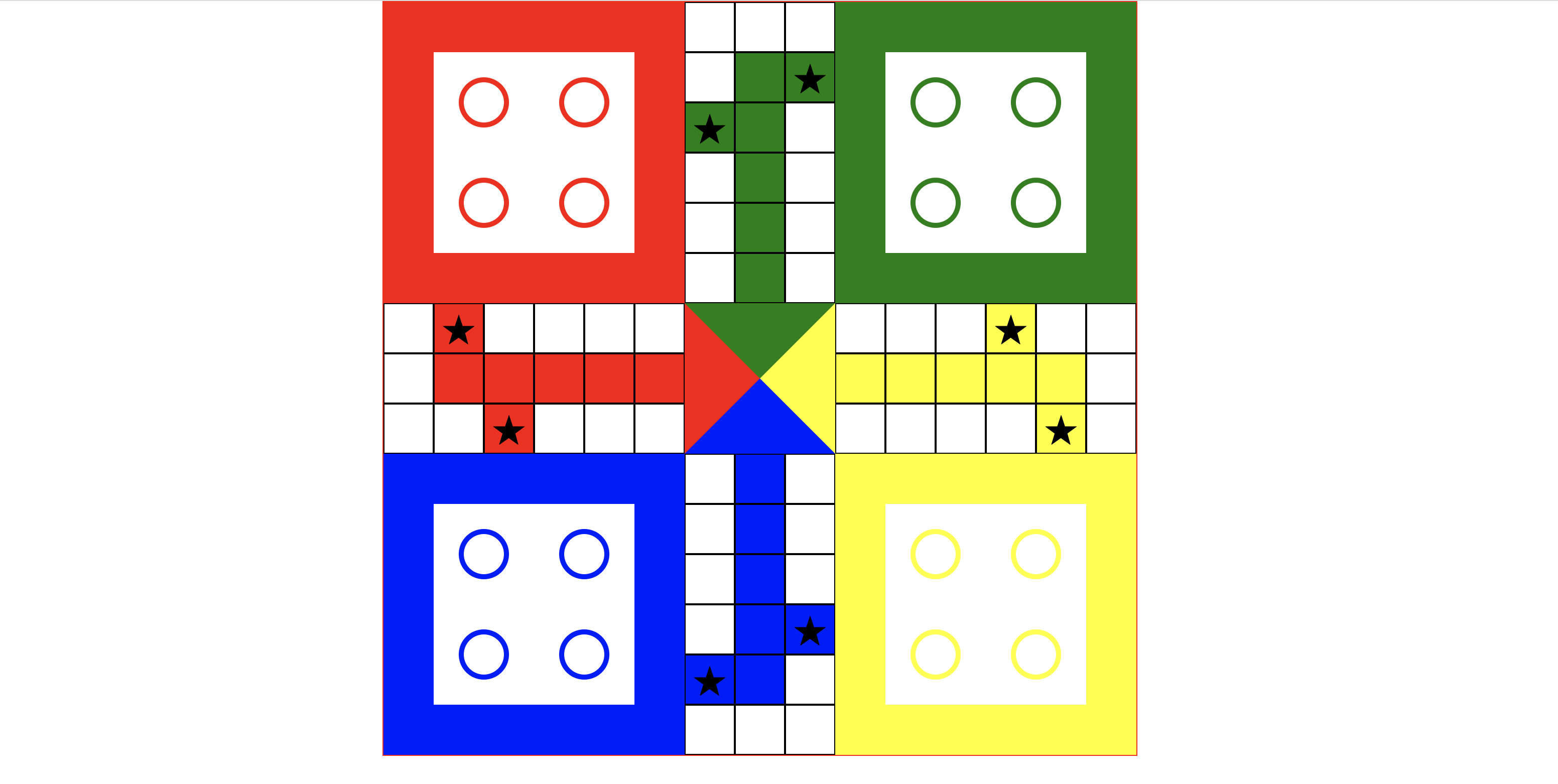
How to make Ludo using HTML and CSS
Ludo is one of the most popular board games enjoyed by people of all ages. Did you know you can create your own Ludo game using just HTML and CSS?
In this tutorial, we will show you how to build a fully styled Ludo board from scratch. No advanced JavaScript is required—just basic knowledge of HTML elements, CSS classes, and styling techniques. By the end of this tutorial, you will have your very own Ludo game board ready to use!
What You Will Learn
-
How to structure a Ludo board using HTML
-
How to style the board using CSS (colors, grid layout, and tokens)
-
How to position Ludo tokens for each player
-
How to make the board visually appealing
Requirements
Before we start, make sure you have the following:
-
A code editor (VSCode, Sublime Text, or any editor you prefer)
-
A web browser to test your Ludo game
-
Basic understanding of HTML and CSS classes
<!DOCTYPE html>
<html lang="en">
<head>
<meta charset="UTF-8">
<meta name="viewport" content="width=device-width, initial-scale=1.0">
<title>Ludo</title>
<style>
*
{
margin:0;
padding: 0;
}
.outer
{
height: 750px;
width:750px;
margin:0px auto;
border:1px solid red;
}
.box_row
{
height: 300px;
width:750px;
//background: #fc8596;
}
.box
{
height: 200px;
width:200px;
float: left;
//background: #ccc;
}
.v_lad
{
height: 300px;
width:150px;
//background: #ed8541;
float: left;
}
.circle
{
height: 50px;
width:50px;
//background: #f07485;
margin:25px;
border-radius: 50%;
box-sizing: border-box;
float: left;
}
.border_red
{
border:5px solid red;
}
.border_green
{
border:5px solid green;
}
.border_blue
{
border:5px solid blue;
}
.border_yellow
{
border:5px solid yellow;
}
.v_lad_row
{
height: 50px;
width:150px;
//background: #dd7485;
}
.v_lad_cell
{
height: 50px;
width:50px;
border:1px solid #000;
box-sizing: border-box;
float: left;
text-align: center;
}
.red
{
background: red;
}
.green
{
background: green;
}
.blue
{
background: blue;
}
.yellow
{
background: yellow;
}
.middle_row
{
height: 150px;
width:750px;
}
.h_lad
{
height: 150px;
width:300px;
//background: #ff4152;
float: left;
}
.h_lad_row
{
height: 50px;
width: 300px;
//background: #ffc857;
float: left;
}
.h_lad_cell
{
height: 50px;
width:50px;
border:1px solid #000;
float: left;
box-sizing: border-box;
text-align: center;
}
.ludo_home
{
height: 0;
width: 0;
border-left:75px solid red;
border-right:75px solid yellow;
border-top:75px solid green;
border-bottom:75px solid blue;
float: left;
}
.star
{
font-size: 32px;
text-align: center;
}
</style>
</head>
<body>
<div class="outer">
<div class="box_row">
<div class="box" style="border:50px solid red;">
<div class="circle border_red"></div>
<div class="circle border_red"></div>
<div class="circle border_red"></div>
<div class="circle border_red"></div>
</div>
<div class="v_lad">
<div class="v_lad_row">
<div class="v_lad_cell"></div>
<div class="v_lad_cell"></div>
<div class="v_lad_cell"></div>
</div>
<div class="v_lad_row">
<div class="v_lad_cell"></div>
<div class="v_lad_cell green"></div>
<div class="v_lad_cell green"><span class="star">★</span></div>
</div>
<div class="v_lad_row">
<div class="v_lad_cell green"><span class="star">★</span></div>
<div class="v_lad_cell green"></div>
<div class="v_lad_cell"></div>
</div>
<div class="v_lad_row">
<div class="v_lad_cell"></div>
<div class="v_lad_cell green"></div>
<div class="v_lad_cell"></div>
</div>
<div class="v_lad_row">
<div class="v_lad_cell"></div>
<div class="v_lad_cell green"></div>
<div class="v_lad_cell"></div>
</div>
<div class="v_lad_row">
<div class="v_lad_cell"></div>
<div class="v_lad_cell green"></div>
<div class="v_lad_cell"></div>
</div>
</div>
<div class="box" style="border:50px solid green;">
<div class="circle border_green"></div>
<div class="circle border_green"></div>
<div class="circle border_green"></div>
<div class="circle border_green"></div>
</div>
</div>
<div class="middle_row">
<div class="h_lad">
<div class="h_lad_row">
<div class="h_lad_cell"></div>
<div class="h_lad_cell red"><span class="star">★</span></div>
<div class="h_lad_cell"></div>
<div class="h_lad_cell"></div>
<div class="h_lad_cell"></div>
<div class="h_lad_cell"></div>
</div>
<div class="h_lad_row">
<div class="h_lad_cell"></div>
<div class="h_lad_cell red"></div>
<div class="h_lad_cell red"></div>
<div class="h_lad_cell red"></div>
<div class="h_lad_cell red"></div>
<div class="h_lad_cell red"></div>
</div>
<div class="h_lad_row">
<div class="h_lad_cell"></div>
<div class="h_lad_cell"></div>
<div class="h_lad_cell red"><span class="star">★</span></div>
<div class="h_lad_cell"></div>
<div class="h_lad_cell"></div>
<div class="h_lad_cell"></div>
</div>
</div>
<div class="ludo_home"></div>
<div class="h_lad">
<div class="h_lad_row">
<div class="h_lad_cell"></div>
<div class="h_lad_cell"></div>
<div class="h_lad_cell"></div>
<div class="h_lad_cell yellow"><span class="star">★</span></div>
<div class="h_lad_cell"></div>
<div class="h_lad_cell"></div>
</div>
<div class="h_lad_row">
<div class="h_lad_cell yellow"></div>
<div class="h_lad_cell yellow"></div>
<div class="h_lad_cell yellow"></div>
<div class="h_lad_cell yellow"></div>
<div class="h_lad_cell yellow"></div>
<div class="h_lad_cell "></div>
</div>
<div class="h_lad_row">
<div class="h_lad_cell"></div>
<div class="h_lad_cell"></div>
<div class="h_lad_cell"></div>
<div class="h_lad_cell"></div>
<div class="h_lad_cell yellow"><span class="star">★</span></div>
<div class="h_lad_cell"></div>
</div>
</div>
</div>
<div class="box_row">
<div class="box" style="border:50px solid blue;">
<div class="circle border_blue"></div>
<div class="circle border_blue"></div>
<div class="circle border_blue"></div>
<div class="circle border_blue"></div>
</div>
<div class="v_lad">
<div class="v_lad_row">
<div class="v_lad_cell"></div>
<div class="v_lad_cell blue"></div>
<div class="v_lad_cell"></div>
</div>
<div class="v_lad_row">
<div class="v_lad_cell"></div>
<div class="v_lad_cell blue"></div>
<div class="v_lad_cell "></div>
</div>
<div class="v_lad_row">
<div class="v_lad_cell"></div>
<div class="v_lad_cell blue"></div>
<div class="v_lad_cell"></div>
</div>
<div class="v_lad_row">
<div class="v_lad_cell"></div>
<div class="v_lad_cell blue"></div>
<div class="v_lad_cell blue"><span class="star">★</span></div>
</div>
<div class="v_lad_row">
<div class="v_lad_cell blue "><span class="star">★</span></div>
<div class="v_lad_cell blue"></div>
<div class="v_lad_cell"></div>
</div>
<div class="v_lad_row">
<div class="v_lad_cell"></div>
<div class="v_lad_cell"></div>
<div class="v_lad_cell"></div>
</div>
</div>
<div class="box" style="border:50px solid yellow;">
<div class="circle border_yellow"></div>
<div class="circle border_yellow"></div>
<div class="circle border_yellow"></div>
<div class="circle border_yellow"></div>
</div>
</div>
</div>
</body>
</html>
Complete Code
Once you combine HTML and CSS, you will have a functional Ludo board ready to use. Here’s the full code snippet:
Conclusion
Congratulations! 🎉
You have successfully created a Ludo game board using HTML and CSS.

27 Jul, 2023
How to Loop Through an Array in JavaScript
In this article, We will learn how to loop through array in Javascript.
A loop is a type of computer program that allows us to repeat a specific operation a predetermined number of times without having to write that operation individually.
For example, if we have an array and want to output each element in the array, rather than using the index number to do so one by one, we can simply loop through and perform this operation once.
forEach method
const arr = [1,2,3,4,5,6]

const printValue  = (curElement, index) =>{

  console.log('Index :'+index+ ' Value :'+curElement)

}
map method
arr.forEach(printValue)

const arr1 = [1,2,3,4,5,6]

arr1.map((curElement, index)=>{

  return console.log('Index :'+index+ ' Value :'+curElement)

})
for loop
const arr2 = [1,2,3,4,5,6]

for(i=0;i<=arr2.length-1;i++){

   console.log('Index :'+i+ ' Value :'+arr2[i])

}
for...in loop
const arr3 = [1,2,3,4,5,6]

for (i in arr3) {

  console.log('Index :'+i+ ' Value :'+arr3[i])

}

15 Jun, 2023
How to make chessboard using html and css
In this article, we will learn how to make chessboard using HTML and CSS. i take a class name container which have height 800 px and width 800px. and talking a row with height 100px and width 800px; which manage the row of chessbaord and taking two classes for black and white box which have height 100px and width 100px. here is the complete code.
<!DOCTYPE html>

<html lang="en">

<head>

    <meta charset="UTF-8">

    <meta name="viewport" content="width=device-width, initial-scale=1.0">

    <title>Chessboard Using HTML and CSS</title>

    <style>

        .container {

          height: 800px;

          width:800px;

          box-sizing: border-box;

          border:1px solid #000;

          margin:0 auto;

        }

        .row{

            height: 100px;

            width:800px;

            display: flex;

        }

        .black{

            height: 100px;

            width:100px;

            background-color: #000;

        }

        .white{

            height: 100px;

            width:100px;

            background-color: #fff;

        }

        </style>

</head>

<body>

    <div class="container">

        <div class="row">

            <div class="black"></div>

            <div class="white"></div>

            <div class="black"></div>

            <div class="white"></div>

            <div class="black"></div>

            <div class="white"></div>

            <div class="black"></div>

            <div class="white"></div>

        </div>

        <div class="row">

            <div class="white"></div>

            <div class="black"></div>

            <div class="white"></div>

            <div class="black"></div>

            <div class="white"></div>

            <div class="black"></div>

            <div class="white"></div>

            <div class="black"></div>

        </div>

        <div class="row">

            <div class="black"></div>

            <div class="white"></div>

            <div class="black"></div>

            <div class="white"></div>

            <div class="black"></div>

            <div class="white"></div>

            <div class="black"></div>

            <div class="white"></div>

        </div>

        <div class="row">

            <div class="white"></div>

            <div class="black"></div>

            <div class="white"></div>

            <div class="black"></div>

            <div class="white"></div>

            <div class="black"></div>

            <div class="white"></div>

            <div class="black"></div>

        </div>

        <div class="row">

            <div class="black"></div>

            <div class="white"></div>

            <div class="black"></div>

            <div class="white"></div>

            <div class="black"></div>

            <div class="white"></div>

            <div class="black"></div>

            <div class="white"></div>

        </div>

        <div class="row">

            <div class="white"></div>

            <div class="black"></div>

            <div class="white"></div>

            <div class="black"></div>

            <div class="white"></div>

            <div class="black"></div>

            <div class="white"></div>

            <div class="black"></div>

        </div>

        <div class="row">

            <div class="black"></div>

            <div class="white"></div>

            <div class="black"></div>

            <div class="white"></div>

            <div class="black"></div>

            <div class="white"></div>

            <div class="black"></div>

            <div class="white"></div>

        </div>

        <div class="row">

            <div class="white"></div>

            <div class="black"></div>

            <div class="white"></div>

            <div class="black"></div>

            <div class="white"></div>

            <div class="black"></div>

            <div class="white"></div>

            <div class="black"></div>

        </div>

    </div>

</body>

</html>
12 Jun, 2023
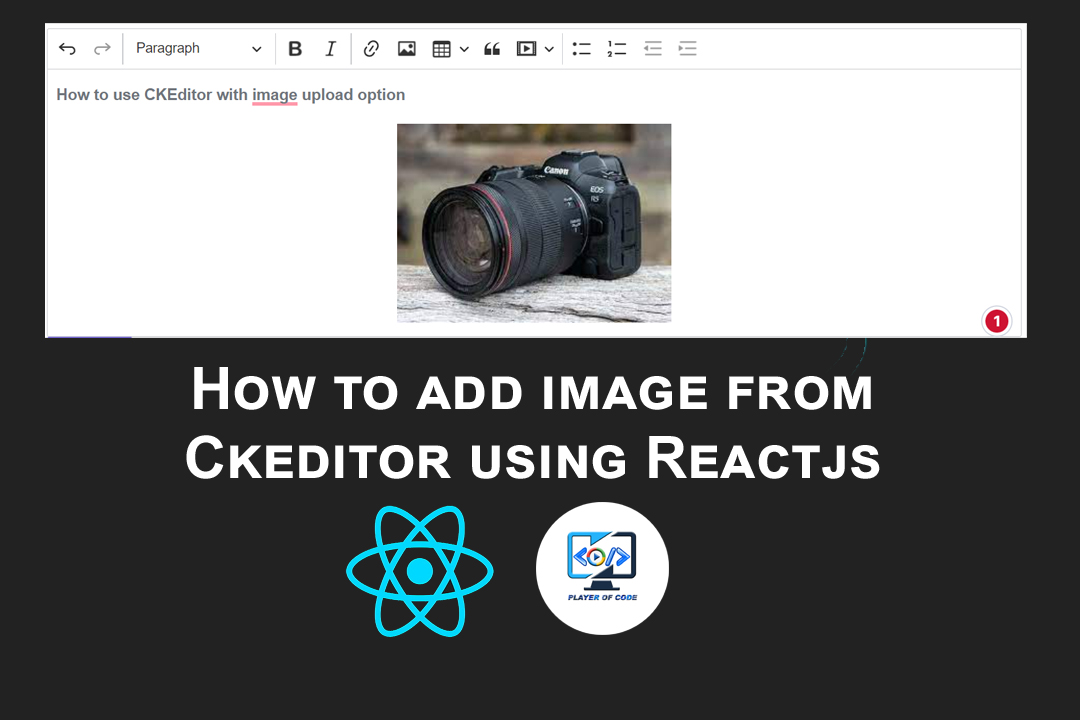
How to add image from Ckeditor using Reactjs
in this article, we will learn how to add rich text editor in React JS. CKEditor 5 allows users to create any type of content in your application, be it documents, reports, emails, notes or chat messages.
So let's get started. first we need to install it.
import { CKEditor } from '@ckeditor/ckeditor5-react';

import ClassicEditor from '@ckeditor/ckeditor5-build-classic';
I need axios to handle api request. So install it too.
npm i axios
If you want to upload image. You need an api to store image in server.
I created an api https://playerofcode.in/api/auth/upload in get response
{

    status:'success',

    url:'img_url',

    message:'Image uploaded successfully'

}
I used PHP CodeIgniter to create this api. you can use any backend language
I created uploadAdapter fucntion to handle image upload request.
function uploadAdapter(loader) {

        return {

            upload: () => {

                return new Promise((resolve, reject) => {

                    const body = new FormData();

                    loader.file.then((file) => {

                        body.append('image', file);

                        axios.post(`${api_url}/${upload_endpoint}`, body, {

                            headers: {

                                "Content-Type": "multipart/form-data",

                            },

                        })

                            .then((response) => {

                                // handle the response

                                console.log('my res', response.data.url);

                                resolve({ default: `${response.data.url}` })

                            })

                            .catch((error) => {

                                // handle errors

                                console.log(error);

                            });

                    })

                })

            }

        }

    }
import React, { useState } from 'react';

import { CKEditor } from '@ckeditor/ckeditor5-react';

import ClassicEditor from '@ckeditor/ckeditor5-build-classic';

import axios from 'axios'

const TextEditor = () => {

    const [value, setValue] = useState()

    const api_url = "https://playerofcode.in";

    const upload_endpoint = 'api/auth/upload';

    function uploadAdapter(loader) {

        return {

            upload: () => {

                return new Promise((resolve, reject) => {

                    const body = new FormData();

                    loader.file.then((file) => {

                        body.append('image', file);

                        axios.post(`${api_url}/${upload_endpoint}`, body, {

                            headers: {

                                "Content-Type": "multipart/form-data",

                            },

                        })

                            .then((response) => {

                                // handle the response

                                console.log('my res', response.data.url);

                                resolve({ default: `${response.data.url}` })

                            })

                            .catch((error) => {

                                // handle errors

                                console.log(error);

                            });

                    })

                })

            }

        }

    }

    function uploadPlugin(editor) {

        editor.plugins.get('FileRepository').createUploadAdapter = (loader) => {

            return new uploadAdapter(loader)

        }

    }

    return (

        <div className="App">

            <h2>Using CKEditor 5 build in React</h2>

            <CKEditor

                config={{

                    extraPlugins: [uploadPlugin]

                }}

                editor={ClassicEditor}

                data="<p>Hello from CKEditor 5!</p>"

                onReady={editor => {

                    // You can store the "editor" and use when it is needed.

                    console.log('Editor is ready to use!', editor);

                }}

                onChange={(event, editor) => {

                    const data = editor.getData();

                    setValue(data)

                    console.log({ event, editor, data });

                }}

                onBlur={(event, editor) => {

                    console.log('Blur.', editor);

                }}

                onFocus={(event, editor) => {

                    console.log('Focus.', editor);

                }}

            />

        </div>

    );

}

export default TextEditor;
25 May, 2023
Build a React Form as a Pro || Advance Level
Hello Developer!
Here in this article, We will learn how to make a input form like a pro player. Here we created to files App.js and InputCom.js In App Component we use data useState hook to manage all the necessary field, this data we will use to process the input with backend server. We created a btnHandler function to handle the submit button. We are used an another formList useState hook to manage input type attributes like type, name, placeholder etc and we are use map method to loop InputCom component which is manage the input value. We are created a inputValue funtion to taking input value from child component (InputCop) to parent component (App) through props.
import { useState } from "react";
import { InputCom } from "./InputCom";
export default function App() {
  const [data, setData] = useState({
    name: "",
    email: "",
    password: ""
  });
  const inputValue = (name, value) => {
    setData({ ...data, [name]: value });
  };
  const btnHandler = () => {
    const { name, email, password } = data;
    alert(`Name is ${name} and Email is ${email} and password is ${password} `);
  };
  const [formList, setFormList] = useState([
    {
      name: "name",
      type: "text",
      placeholder: "Enter Your Name"
    },
    {
      name: "email",
      type: "email",
      placeholder: "Enter Your Email"
    },
    {
      name: "password",
      type: "password",
      placeholder: "Enter Your Password"
    }
  ]);
  return (
    <>
      {formList.map((item, index) => {
        return (
          <InputCom
            key={index}
            name={item.name}
            type={item.type}
            placeholder={item.placeholder}
            inputValue={inputValue}
          />
        );
      })}
      <br />
      <button onClick={btnHandler}>Submit</button>
    </>
  );
}
We are created InputCom component to manage input. We created a text useState hook to control the input value. textHandler function to handle onChange event.
import React, { useState } from "react";
export const InputCom = (props) => {
  const [text, setText] = useState("");
  const textHandler = (e) => {
    setText(e.target.value);
    props.inputValue(e.target.name, e.target.value);
  };
  return (
    <input
      type={props.type}
      name={props.name}
      placeholder={props.placeholder}
      value={text}
      onChange={textHandler}
    />
  );
};
So this is all we learn in this article. If you have any doubt, you can react us at playerofcode@gmail.com

19 May, 2023
How to make Custom Image Slider in React JS
In this article, we will learn how to make custom image slider with pure react js with Previous, Next, Auto Slide, thumb etc. It's very simple let's make it work.
const [image,setImage]=useState([

    'https://images.techopedia.com/images/uploads/web-developer.jpg',

    'https://www.betterteam.com/images/web-developer-job-description-6494x4331-2020128.jpeg?crop=4:3,smart&width=1200&dpr=2',

    'https://w10.naukri.com/mailers/2021/naukri-learning/oct/27oct-v2/What-is-Web-Developer.jpg',

    'https://www.roberthalf.com/sites/default/files/2020-06/web-developer-questions.jpg',

    'https://d3njjcbhbojbot.cloudfront.net/api/utilities/v1/imageproxy/https://images.ctfassets.net/wp1lcwdav1p1/gzZpBDV3nX1AWytfLhbgs/d528553697d959544c8ca5b80b6d8beb/web_developer.png?w=1500&h=680&q=60&fit=fill&f=faces&fm=jpg&fl=progressive&auto=format%2Ccompress&dpr=1&w=1000&h=',

    'https://res.cloudinary.com/highereducation/images/f_auto,q_auto/v1662131717/ComputerScience.org/CompSci_WebDev_Career_WebDev_day0in0life_4030594ab/CompSci_WebDev_Career_WebDev_day0in0life_4030594ab.jpg?_i=AA',

    'https://www.codingdojo.com/blog/wp-content/uploads/webdevmeeting.jpg',

    'https://s3-us-east-2.amazonaws.com/maryville/wp-content/uploads/2020/02/28151102/web-developers.jpg',

    'https://insights.dice.com/wp-content/uploads/2021/01/shutterstock_1233726961.jpg',

    'https://smsh-862737-juc1ugur1qwqqqo4.stackpathdns.com/2569356/wp-content/uploads/2020/11/AdobeStock_241083104-1400x934.jpg?size=1400x934&lossy=1&strip=1&webp=1',

    'https://www.herzing.edu/sites/default/files/styles/fp_640_288/public/images/blog/web_developer.jpg.webp?itok=QABkWNY0',

    'https://rasnatech.com/wp-content/uploads/2019/09/ProgrammersWeb-Developers.jpg',

    'https://www.qualitydevs.com/wp-content/uploads/2017/12/desarrollador.jpg',

  ])
<Slider imgs={image}/>
import React,{useState,useEffect} from 'react'
import './Slider.css'
import { FaArrowRight,FaArrowLeft } from 'react-icons/fa';
const Slider = ({imgs}) => {
const [index,setIndex]=useState(0);
const autoScroll=true;
let slideInterval;
let intervalTime=2000;
function auto () {
slideInterval=setInterval(next,intervalTime);
}
useEffect(() => {
if(autoScroll){
auto()
}
return () => clearInterval(slideInterval);
}, [index])
const next = ()=>{
if(index === imgs.length -1){
setIndex(0)
}else{
setIndex(index+1)
}
}
const prev = () =>{
if(index === 0){
setIndex(imgs.length -1)
}else{
setIndex(index-1)
}
}
const Thumbnail = ({arr, image, index})=>{
return(
<div className='thumbnail'>
{
arr.map((imgsrc,i)=>{
return <img
key={i}
height="70"
width="70"
src={imgsrc}
onClick={()=> image(i)}
className={index === i ? 'active':''}
style={{margin:'2px'}}
/>
})
}
</div>
)
}
return (
<>
<div className='container'>
<div className='row'>
<div className='wrapper'>
<img src={imgs[index]} style={{height:'280px',width:'100%',position:'relative'}}/>
<button onClick={prev} className="leftBtn"><FaArrowLeft/></button>
<button onClick={next} className="nextBtn"><FaArrowRight/></button>
<Thumbnail arr={imgs} image={setIndex} index={index}/><br/>
</div>
</div>
</div>
</>
)
}
.thumbnail .active{
border:2px solid rgb(43, 185, 233);
}
.wrapper{
position: relative;
min-height: 300px;
height: auto;
width:500px;
padding: 0;
}
.leftBtn{
height: 40px;
width:40px;
border-radius: 50%;
background-color: rgba(253, 251, 251, 0.3);
border:1px solid rgb(43, 185, 233);
color:rgb(43, 185, 233);
position: absolute;
top:100px;
left:10px;
}
.nextBtn{
height: 40px;
width:40px;
border-radius: 50%;
background-color: rgba(253, 251, 251, 0.3);
border:1px solid rgb(43, 185, 233);
color:rgb(43, 185, 233);
position: absolute;
top:100px;
right:10px;
}
export default Slider

05 May, 2023
How to make Todo List in React JS
In this article, We will learn how to make Todo List app in React JS. Type in a task or item or whatever you want into the input field and press Add (or hit Enter/Return). Once you've submitted your item, you will see it appear as an entry. You can keep adding item to add additional entries and have them all show up. To remove an item, just click on an existing entry. That entry will be removed. You can edit your item.
import React,{useState  } from 'react'
const TodoList = () => {
   const [text, setText] = useState('')
   const [edit, setEdit] = useState(false)
   const [curIndex, setIndex] = useState(null)
   const [data, setData] = useState([])
   const btnHandler  = () =>{
    if(edit){
        data[curIndex] =text
        setText('')
        setEdit(false)
    } else {
        setData((pre)=>[...pre, text])
        setText('')
    }
   }
   const removeHandler = (index) =>{
    const filteredItem = data.filter((todo,todoIndex) => {
        return todoIndex !== index;
      });
      setData(filteredItem);
   }
   const editHandler = (index) =>{
    setText(data[index])
    setEdit(true)
    setIndex(index)
   }
  return (
<div>
 <input type="text" onChange={(e)=>setText(e.target.value)} value={text}/>
<button onClick={btnHandler}>{`${edit ? 'Update' : 'Add'}`}</button<
{data.map((item, index)=>{
return <div key={index}>
{item}
<button onClick={()=>editHandler(index)}>Edit</button>
<button onClick={()=>removeHandler(index)}>Delete</button>
}) }
</div>
) } export default TodoList

01 May, 2023
How to Get Data from Firebase in React JS
Google's Firebase is a platform for building mobile and online applications. It offers products and services, such as Cloud Firestore, Cloud Functions, Authentication, Hosting, Realtime Database, Cloud Storage, and more, that you can rely on for your app development needs.
Developers may simply store and display user-generated material like photographs and movies that are kept in Google Cloud Storage buckets thanks to the cloud storage service. Users may organise uploaded files and implement access controls as necessary thanks to Firebase Cloud Storage's integration with other Firebase services like Firebase Authentication.
Create a new file in the src folder called firebase.js. Copy the configuration code from when we created a Firebase project and paste it in the firebase.js file.
Export the configuration object with the credentials and use them to launch the Firebase application. A reference that is used to create references in your storage is also exported to the storage service:
import { initializeApp } from 'firebase/app';

import { getFirestore, collection, getDocs } from 'firebase/firestore';

import { getStorage } from "firebase/storage";

const firebaseConfig = {

  apiKey: "***************************************",

  authDomain: "playerofcode368712.firebaseapp.com",

  projectId: "playerofcode-368712",

  storageBucket: "playerofcode-368712.appspot.com",

  messagingSenderId: "937825775089",

  appId: "1:937825775089:web:19f0d7a0fa9bae1910e850"

};

const app = initializeApp(firebaseConfig);

const db = getFirestore(app);

const storage = getStorage(app);

const init = {

  db,

  storage,

  app

}

export default init;
You retrieve data/record from firebase/firestore. We need to import
import { collection, getDocs } from 'firebase/firestore';
Next we will make a method to find students record/data from firebase/firestore. Let's see the example
const getStudents= async () => {


        const mycollection = collection(init.db, 'students');


        const data = await getDocs(mycollection);


        setData(data.docs.map((doc) => ({ id: doc.id, ...doc.data() })));


}
Now we will see the complete code in react js with firebase
import React, { useState, useEffect } from 'react'

import init from './firebase';

import { collection, getDocs } from 'firebase/firestore';

const StudentList = () => {


const [data, setData] = useState()


const getStudents= async () => {


        const mycollection = collection(init.db, 'students');


        const data = await getDocs(mycollection);


        setData(data.docs.map((doc) => ({ id: doc.id, ...doc.data() })));


}


useEffect(() => {


        getStudents();


}, [])


return (


<>


<table>


<tr>


<td>Name</td>


<td>Class</td>


</tr>


{


data.map((item, index)=>{

return(


<tr key={index}>


<td>{item.name}</td>


<td>{item.class}</td>


</tr>


)


})


}


</table>


</>


)


}

export default StudentList
19 Jan, 2023
How to Upload Image in Firebase Storage
Google's Firebase is a platform for building mobile and online applications. It offers products and services, such as Cloud Firestore, Cloud Functions, Authentication, Hosting, Realtime Database, Cloud Storage, and more, that you can rely on for your app development needs.
Developers may simply store and display user-generated material like photographs and movies that are kept in Google Cloud Storage buckets thanks to the cloud storage service. Users may organise uploaded files and implement access controls as necessary thanks to Firebase Cloud Storage's integration with other Firebase services like Firebase Authentication.
Create a new file in the src folder called firebase.js. Copy the configuration code from when we created a Firebase project and paste it in the firebase.js file.
Export the configuration object with the credentials and use them to launch the Firebase application. A reference that is used to create references in your storage is also exported to the storage service:
import { initializeApp } from 'firebase/app';

import { getFirestore, collection, getDocs } from 'firebase/firestore';

import { getStorage } from "firebase/storage";

const firebaseConfig = {

  apiKey: "***************************************",

  authDomain: "playerofcode368712.firebaseapp.com",

  projectId: "playerofcode-368712",

  storageBucket: "playerofcode-368712.appspot.com",

  messagingSenderId: "937825775089",

  appId: "1:937825775089:web:19f0d7a0fa9bae1910e850"

};

const app = initializeApp(firebaseConfig);

const db = getFirestore(app);

const storage = getStorage(app);

const init = {

  db,

  storage,

  app

}

export default init;
import React,{useState} from 'react'
import {  ref, uploadBytes, uploadBytesResumable, getDownloadURL } from "firebase/storage";
import init from './firebase';
const ImageUpload = () => {
    const [imgUrl, setImgUrl] = useState(null);
    const [progresspercent, setProgresspercent] = useState(0);
    const imgHandler = (e) =>{
        e.preventDefault();
        const file=e.target[0].files[0];
            const storageRef  = ref(init.storage, `${file.name}`);
            const uploadTask= uploadBytesResumable(storageRef,file);
            uploadTask.on('state_changed',
            (snapshot) => {
                const progress = Math.round((snapshot.bytesTransferred / snapshot.totalBytes) * 100);
                setProgresspercent(progress);
            },
            (err) => {
                console.log(err);
            },
            () => {
                getDownloadURL(uploadTask.snapshot.ref).then((downloadURL) => {
                  setImgUrl(downloadURL);
                });
              }
            );
    }
  return (
    <div>
        <form onSubmit={imgHandler}>
        <input type="file" />
        <button type="submit"  >Upload</button>
        </form>
        {!imgUrl &&
        <h5>{progresspercent}% uploading</h5>
      }
      {
        imgUrl &&
        <img src={imgUrl} alt='uploaded file' height={200} />
      }
    </div>
  )
}
export default ImageUpload

30 Dec, 2022
How to Calculate Read Time of Your Blog
The estimated read time for each item is displayed to readers to contemporary web magazines and blogs. Visitors are more likely to read an article after seeing this information, which also enhances user experience. More people see the page, and the bounce rate is reduced. It is possible to integrate this function into a php blog. We'll demonstrate how to create a straightforward PHP script for this purpose in this post.
<?php
function readTimeCounter ($content)
{
    $word=str_word_count(strip_tags($content));
    $m= floor($word/200);
    $s= floor($word % 200 / (200/60));
    return $res=  $m.' min'. ($m ==1? '':'s').', '.$s.'sec'.($s ==1 ? '' :'s');
}
$content="Your content goes here";
echo readTimeCounter($content);
?>

08 Aug, 2022
High Order Component in React
HOC is an advanced technique for reusing component logic. It is a function that takes a component as a props and returns a new component.
const App = ()=> {

  const isLoggedIn = false;

  const HOC = ({ Authentication }) => {

    if (isLoggedIn) return <Authentication />;

    return <div>Please Login to continue</div>;

  };

  const Dashboard = () => {

    return(

    <div>Welcome User</div>

    )

  };

  return (

    <div className="App">

      <HOC Authentication={Dashboard} />

    </div>

  );

}

export default App;

04 Aug, 2022
How to create scroll to top button in react
When we visit any website which has a lot of content. We scroll down to read it. Then we see a back to top button which will help me to got at the top in the website. It's feel goood to see that functionality. Think if not have back to top button. Visitors experience will be not good. And back to top button will be visible when you scrolled down some distance.
So in this post, we are creating backc to top button from scratch without using any third-party libraries.
We will use useState hook, useEffect hook, and window object.
To smoothly scroll the window to the top, we use:
window.scrollTo({

            top:0,

            left:0,

            behavior:"smooth"

        });
We create a function to listenToScroll
const listenToScroll = () =>{

        let heightToHidden = 250;

        const winScroll = document.body.scrollTop || document.documentElement.scrollTop;

       if(winScroll > heightToHidden){

        setIsVisible(true)

       } else {

        setIsVisible(false);

       }

    }
We will se useEffect Hooks to listen scroll by user and will handle by listenToScroll function.
useEffect(() => {

      window.addEventListener("scroll",listenToScroll);

      return () => {

        window.removeEventListener("scroll",listenToScroll);

      }

    },[])
this is css code for back to top button
.go_to_top

{

  right:20px;

  bottom: 20px;

  position: fixed;

  background-color: #012970;

  height: 40px;

  width:40px;

  display: flex;

  justify-content: center;

  align-items: center;

  color: #fff;

  font-size: 18px;

  border-radius: 50%;

  cursor: pointer;

  z-index: 999;

}

.go_to_top i{

  animation: goto 1.2s linear infinite alternate-reverse;

}

@keyframes goto {

  0%{

    transform: translateY(-5px);

  }

  100%{

    transform: translateY(5px);

  }

}
We are creating a new Component with GoToTop.js
import {useState,useEffect} from 'react'

import '../index.css'

const GoToTop = () => {

    const [isVisible, setIsVisible] = useState(false);


    const listenToScroll = () =>{

        let heightToHidden = 250;

        const winScroll = document.body.scrollTop || document.documentElement.scrollTop;

       if(winScroll > heightToHidden){

        setIsVisible(true)

       } else {

        setIsVisible(false);

       }

    }

    useEffect(() => {

      window.addEventListener("scroll",listenToScroll);

      return () => {

        window.removeEventListener("scroll",listenToScroll);

      }

    },[])


    const goToBtn = () =>{

        window.scrollTo({

            top:0,

            left:0,

            behavior:"smooth"

        });

    }

  return (

    <>

    {

        isVisible && (

            <div className='go_to_top' onClick={goToBtn}>

            <i className='fa fa-arrow-up'></i>

            </div>

        )

    }

    </>


  )

}

export default GoToTop
Now import this component in your App Component and use it.

03 Aug, 2022
Learn to use useState Hook in React
useState() is a Hook that is used for state management in functional components . The useState hook takes the initial state as an argument and returns an array of two entries. The first element is initial state and second is a function that is used for updating the state.
const [state, setState] = useState(initialstate)
To use useState you need to import useState from react
import { useState } from "react"
I'm making a button to increase the number. I will initialize with zero and on button click will increment one.
import "./styles.css";

import { useState } from "react";

const App = () => {

  const [count, setCount] = useState(0);

  return (

    <div className="App">

      <h1>{count}</h1>

      <button onClick={() => setCount(count + 1)}>Click to Inc</button>

    </div>

  );

};

export default App;

01 Aug, 2022
Build a Contact Form with React
Every website have a contact us form. A contact us form is used to contact to website owner or team. Contact Us page is use the email or call method for communication. User need to fill the form like name, mobile number, email, subject, message etc. In this post you will learn how to implement contact us form with React.
Building the contact form
Create the React app
install the create-react-app package with
npm install create-react-app
Create the contact form
I have created a ContactForm Component and used Bootstrap 5 to design Contact page with name, email, mobile number, subject and message field.
<form>

<div className='form-group'>

    <label>Name</label>

    <input type="text" name="name" className='form-control' onChange={formHandler} value={data.name} placeholder='Enter Name'/>

</div>

<div className='form-group'>

    <label>Mobile Number</label>

    <input type="text" name="mobno" className='form-control' onChange={formHandler}  value={data.mobno} placeholder='Enter Mobile Number'/>

</div>

<div className='form-group'>

    <label>Subject</label>

    <input type="text" name="subject" className='form-control' onChange={formHandler}  value={data.subject} placeholder='Enter Subject'/>

</div>

<div className='form-group'>

    <label>Message</label>

    <textarea type="text" name="message" className='form-control' onChange={formHandler}  value={data.message} placeholder='Write Your Message...'>

    </textarea>

</div>

<div className='form-group mt-3 text-center'>

    <input type="button" value="Submit" className='btn btn-success btn-sm' onClick={SubmitHandler} />

</div>

</form>
I will use useState hooks to store the form data.
import {useState} from 'react'

const [data,setData]=useState({

        name:'',

        mobno:'',

        subject:'',

        message:''

    });
when user change the input field we trigger an event onChange Handler and handle with formHandler Function.
 const formHandler = (e)=>{

        const name=e.target.name;

        const value=e.target.value;

        setData({...data,[name]:value})

    }
and when user click on submit button. we handle it with SubmitHandler function. Here we can send the data to backend to process and according to response will show alert message.
Full Code
import {useState} from 'react'

const ContactForm = () => {

    const [data,setData]=useState({

        name:'',

        mobno:'',

        subject:'',

        message:''

    });

    const formHandler = (e)=>{

        const name=e.target.name;

        const value=e.target.value;

        setData({...data,[name]:value})

    }

    const SubmitHandler = () =>{

       console.log(data);

       //process with backend

    }

  return (

    <div className='container'>

        <div className='row py-4'>

            <div className='col-md-6'>

                <form>

                    <div className='form-group'>

                        <label>Name</label>

                        <input type="text" name="name" className='form-control' onChange={formHandler} value={data.name} placeholder='Enter Name'/>

                    </div>

                    <div className='form-group'>

                        <label>Mobile Number</label>

                        <input type="text" name="mobno" className='form-control' onChange={formHandler}  value={data.mobno} placeholder='Enter Mobile Number'/>

                    </div>

                    <div className='form-group'>

                        <label>Subject</label>

                        <input type="text" name="subject" className='form-control' onChange={formHandler}  value={data.subject} placeholder='Enter Subject'/>

                    </div>

                    <div className='form-group'>

                        <label>Message</label>

                        <textarea type="text" name="message" className='form-control' onChange={formHandler}  value={data.message} placeholder='Write Your Message...'>

                        </textarea>

                    </div>

                    <div className='form-group mt-3 text-center'>

                        <input type="button" value="Submit" className='btn btn-success btn-sm' onClick={SubmitHandler} />

                    </div>

                    </form>

            </div>

        </div>

    </div>

  )

}

export default ContactForm
30 Jul, 2022
How to use React Redux?
Redux is a predictable state container for JavaScript apps. As the application grows, it becomes difficult to keep it organized and maintain data flow. Redux solves this problem by managing application’s state with a single global object called Store. Redux fundamental principles help in maintaining consistency throughout your application, which makes debugging and testing easier.
The components of Redux architecture are explained below.
STORE: A Store is a place where the entire state of your application lists. It manages the status of the application and has a dispatch(action) function. It is like a brain responsible for all moving parts in Redux.
Note: Every Redux store has a single root reducer function.
import {createStore} from 'redux'

const store = createStore(rootReducer)
ACTION (What to do): In order to change the state, Redux forces you to dispatch actions, which are plain JavaScript objects. That means, if the state changed, an action must have been dispatched.
export const incNumber = (num)=>{

    return{

    type:"INC",

    payload:num

    }

}
REDUCER (How to do): Reducers are functions that take the application’s current state and action as arguments and return a new state result.
const changeNum =(state,action)=>{

    switch(action.type){

    case "INC": return state+action.payload;

    }

    default: return state;

}
To use React Redux with your React project, install it:
npm install react-redux
Redux Principal
1. Single source of truth
The global state of your application is stored as an object inside a single store.
2. State is Read-Only
The only way to change the state is to dispatch an action.
3. Changes are made with pure functions
To specify how the state tree is transformed by actions, you write pure reducers.
action/index.js

export const IncNumber = () => {

  return {

    type: "INC"

  };

};

export const DecNumber = () => {

  return {

    type: "DEC"

  };

};
src/reducers/counter.js

const initialState = 0;

const ChangeNumber = (state = initialState, action) => {

  switch (action.type) {

    case "INC": {

      return state + 1;

    }

    case "DEC": {

      return state - 1;

    }

    default:

      return state;

  }

};

export default ChangeNumber;
src/reducers/index.js

import ChangeNumber from "./counter";

import { combineReducers } from "redux";

const rootReducer = combineReducers({

  ChangeNumber

});

export default rootReducer;
src/store.js

import { createStore } from "redux";

import rootReducer from "./reducers/index";

const store = createStore(rootReducer);

export default store;
src/index.js

import store from "./store";

import { Provider } from "react-redux";

root.render(

  <React.StrictMode>

    <Provider store={store}>

    <App />

    </Provider>

  </React.StrictMode>

);
src/App.js

import "./styles.css";

import { useSelector, useDispatch } from "react-redux";

import { IncNumber, DecNumber } from "./actions/index";

export default function App() {

  const myState = useSelector((state) => state.ChangeNumber);

  const dispatch = useDispatch();

  return (

    <>

      <div className="App">

        <h1>React Redux {myState}</h1>

        <button onClick={() => dispatch(IncNumber())}>INCREMENT</button>

        <button onClick={() => dispatch(DecNumber())}>DECREMENT</button>

      </div>

    </>

  );

}

29 Jul, 2022
How to use useReducer Hook in React
The useReducer Hook is the better alternative to the useState hook.useReducer helps you manage complex state logic in React. For Example You are creating a counter react app in which you implemented three functionality like increment, descrement and reset. So you can use useState but you can implement useReducer Hook to perform that operation.
The useReducer hook accept 2 arguments: the reducer function and the initial state. The hook then returns an array of 2 items: the current state and the dispatch function.
const [state, dispatch] = useReducer(reducer, initialState);
The reducer is a pure function that accepts 2 parameters: the current state and an action object.
const reducer = (state, action) => {

switch (action.type) {

  case "inc": {

    return state + 1;

  }

  case "dec": {

    return state - 1;

  }

  default:

    throw new Error();

}

};
The click event handlers of the INCREMENT, DECREMENT buttons correspondingly use the dispatch() function to dispatch the necessary action object.
<button onClick={() => dispatch({ type: "inc" })}>INC</button>

<button onClick={() => dispatch({ type: "dec" })}>INC</button>
#Program to demonstrate the use of useReducer Hook
import "./styles.css";

import { useReducer } from "react";

export default function App() {

  const reducer = (state, action) => {

    switch (action.type) {

      case "inc": {

        return state + 1;

      }

      case "dec": {

        return state - 1;

      }

      default:

        throw new Error();

    }

  };

  const initialState = 0;

  const [state, dispatch] = useReducer(reducer, initialState);

  return (

    <div className="App">

      <h1>Count {state}</h1>

      <button onClick={() => dispatch({ type: "inc" })}>INC</button>

      <button onClick={() => dispatch({ type: "dec" })}>DEC</button>

    </div>

  );

}

28 Jul, 2022
How to use react context and useContext hook
The React context provides data to components.The main reason behind context is to prevent prop drilling. When we need to send data componentA to ComponentC. We don't need to send props one to another component. We can direct get data from one to another. The context can br used to manage global data like global state, global theme & settings and more.
Today, you'll learn how to use the context in React.
There are three simple steps required to use context: creating the context, providing the context, and consuming the context.
A. Creating the context
import { createContext } from 'react';

const UserContext = createContext('Default Value');
createContext function accepts one optional argument: default value.
B. Providing the context
UserContext.Provider is used to provide context to child components.
To set the value of context use the value prop on the <UserContext.Provider value={value} />:
import { createContext } from "react";

import Greeting from "./Greeting";

const UserContext = createContext();

const AuthContext = createContext();

const App = () => {

  return (

    <>

      <div className="App">

        <h1>useContext Example</h1>

        <UserContext.Provider value={"Vivek Gupta"}>

          <AuthContext.Provider value={"authorised"}>

            <Greeting />

          </AuthContext.Provider>

        </UserContext.Provider>

      </div>

    </>

  );

};

export default App;
export {UserContext, AuthContext}
all the components that'd like later to consume the context have to be wrapped inside the provider component.
C. Consuming the context
UserContext.Consumer is used to consume context to child components.
import { UserContext, AuthContext } from "./App";

const Greeting = () => {

  return (

    <>

      <UserContext.Consumer>

        {(name) => {

          return (

            <AuthContext.Consumer>

              {(auth) => {

                return (

                  <h1>{`Welcome Mr ${name} . You are ${auth} to use Player of Code services`}</h1>

                );

              }}

            </AuthContext.Consumer>

          );

        }}

      </UserContext.Consumer>

    </>

  );

};

export default Greeting;
Output: Welcome Mr Vivek . You are authorised to use Player of Code services

27 Jul, 2022
How to send data from child component to parent component in react
Sometimes we need to pass data from a child component to parent component. For example we have a child component. In child component, We created a input box and a button.When we enter text and click on submit button. We trigger a callback function from parent component and send text input as argument and get data in parent component.
import { useState } from "react";

const Child = (props) => {

  const [name, setName] = useState();

  const clickHandler = (greet) => {

    props.greet(name);

  };

  return (

    <>

      <input

        type="text"

        value={name}

        onChange={(e) => setName(e.target.value)}

      />

      <button onClick={clickHandler}>Click to Perform</button>

    </>

  );

};

 const App = () => {

  const greet = (name) => {

    alert(`Welcome ${name}`)

  };

  return (

    <>

      <div className="App">

        <h1>How to pass data from child to parent component</h1>

        <Child greet={greet} />

      </div>

    </>

  );

}

export default App

23 Jul, 2022
Crushing Your Next PHP Interview: Essential Questions and Answers (2024 Edition)
1. Is multiple inheritance supported in PHP?
Answer : PHP support only single inheritance; it means that a class can be extended from only single class using the keyword 'extended'.
<?php
class Production  {
        function brand()
        {
            echo "Player Of Code";
        }
    }
class Development extends Production {
        function work()
        {
            echo "Web Development";
        }
    }
    $obj= new Development();
    $obj->brand();
//Outout =>  Player Of Code
?>
2. What is difference between require() and require_once()?
Answer : require() and require_once() do the same task but require_once() checks if the PHP script is already included or not before executing it.
same for include() and include_once()
3. How can we connect MySQL database with PHP?
Answer: To connect mysql database with php. We use mysqli_connect() which takes four parameters : host name, username, password and database.
<?php

 $hostname="localhost";

 $username="root";

 $password="";

 $database="playerofcode";

 $con=mysqli_connect($hostname, $username, $password, $database);

 if($con):

 echo "PHP script connected with mysql database";

 else:

 echo "Unable to connect";

 endif;

?>
4. How to check the value of a given variable is alphanumeric?
Answer: ctype_alnum() is used to check given variable is alphanumeric or not.
<?php

 $value="Playerofcode123";

 $res=ctype_alnum($value);

 if($res):

 echo "Alphanumeric";

 else:

 echo "Not a alpha numeric";

 endif;

 //output : Alphanumeric

?>
5. How to delete file in php?
Answer: the unlink() is used to delete the file in php.
<?php

 $file="slider.jpg";

 $res=unlink($file);

 if($res):

 echo "File deleted successfully";

 else:

 echo "Something went wrong";

 endif;

 //output : File deleted successfully

?>
6. Difference between Having and Group by.
The HAVING clause is used instead of WHERE with aggregate functions. While the GROUP BY Clause groups rows that have the same values into summary rows.

22 Jul, 2022
What is Pure Component? How to implement Pure Component?
Generally, If there is a change in state or props values, React component always re-renders the component every time. A pure component is a component that checks whether the state and props values change or not and decide whether to re-render the component or not. That way we improve the application performance.
I will take an example to show you pure component:
I created a component Counter.js and ChildComponent.js and imported ChildComponent in Counter Component.
import {useState} from 'react'

import ChildComponent from './ChildComponent'

const Counter = () => {

    const [count,setCount]=useState(0);

  return (

    <>

    {count}

    <button onClick={()=>setCount(count+1)}>Increase</button>

    <ChildComponent/>

    </>

  )

}

export default Counter
import React from 'react'

const ChildComponent = () => {

    console.log('I am a child component');

  return (

    <div>ChildComponent</div>

  )

}

export default ChildComponent
and now the problem is when Counter Component change the count state ChildComponent also re-render. But ChildComponent didn't change any state or props.
So Pure Component reqired in ChildComponent.
We will use memo to make ChildComponent to make Pure Component.
import React,{memo} from 'react'

const ChildComponent = () => {

    console.log('I am a child component');

  return (

    <div>ChildComponent</div>

  )

}

export default memo(ChildComponent)
Now it will work perfect.

20 Jul, 2022
Master String Manipulation in JavaScript: How to Loop Through Characters
The most interviewer ask that question in front end developer interview that process each character by using loop or they can say without using inbuild function.
So this article will help you to solve your problem statement.
Function:
const iterateString = (str)=>{

let newString = '';

for (let i = 0; i < str.length; i++) {

    newString = newString + str[i] + " * ";

  }

      console.log(newString);

}
Usage:
iterateString("PLAYER OF CODE");
Output:
P * L * A * Y * E * R * * O * F * * C * O * D * E *

20 Jul, 2022
How do you find reverse an string without using any inbuilt methods in javascript?
Reversing a string is one of the most frequently asked question in Front End Developer interview.
const  reverseStr = (str) => {
    var newStr = "";
    for (var i = str.length - 1; i >= 0; i--) {
        newStr += str[i];
    }
    return newStr;
}
reverseStr('playerofcode');

20 Mar, 2022
Effortless Cloud Migration: Your Step-by-Step Guide to AWS
#Create EC2 Instance (Wordpress)
#Connect Domain Name (Route 53)
#Putty Setup
#Create SSL Certificate
#Backup Hosting
#FTP Setup with EC2 instance
#PHPmyAdmin access locally
#Set Correct permissions in your new docroot
1. EC2->running instance->Lunch Instance->AWS MarketPlace->wordpress
=>Wordpress Certified by Bitnami and Automatic
=>Auto-assign Public IP->Enable
=>required 3 port
SSH->TCP->22
HTTP->TCP->80
HTTPS->TCP->443
=>Review and Lunch
=>Create a new Key pair (Save this file very carefully e.g. name.pem )
=>Launch Instance
2. Connect Domain Name with aws EC2 instance
=>Route 53->Create hosted zone
=>domain name->Public hosted zone->create hosted zone
->Create record->simple routing->define simple record
=>Vier/Route traffic to->select(IP address or another value depending on the record type)->enter IPv4 Public IP
=>Record Name->www
=>enter website url
=>record type->CNAME-ROutes traffic to another domain name and to some AWS resources
=>change nameservers from dns domain name
33 Access EC2 instance terminal using Putty(putty.org)
=>Open PuttyGen->load name.pem file->generate->save private key
=>Putty->Host Name (or IP adddress)->saved sessions(give domain name)->save
=>SSH->Auth->load ppk file
=>Connection:data->auto-login username->bitnami->
=>tunnels-defination->localhost:80->source port->8888->add
=>session->saved source domain name->select->save->open
CMD
ls
apps bitnami credentials htdocs stack
cd apps
ls
bitnami phpmyadmin wordpress
=> Remove Bitnami Logo
sudo /opt/bitnami/apps/wordpress/bnconfig --disable_banner 1_>enter
=> Add SSL
sudo /opt/bitnami/bncert-tool
domain list[]->domain.com
The following domains were not included: www.domain.com. Do you want to add them Y
Enable HTTP to HTTPS redirection Y
Enable non-www to redirection n
Enable www to non-www redirection n
Do you agree to these changes Y
Enter Email Address user@gmail.com
Do you agree to the Let's encrypt subscriber agreement? Y
Enter to continue
3=> FTP Setup with EC2 instance fileZilla
=>File->Site Manager->New Site
Host->Enter IP Address
Port->22
Protocal->SFTP- SSH File Transfer Protocal
Login Type=>Key File
User->bitnami
Key File->Choose ppk file::>Connect
4=>Import Database locally
Load Saved Session->domain name->load
Tunnels->Open
localost:8888/phpmyadmin
user name->root
passs=word->system log
Create database (Name should be as per your existing database)
Import->upload file.sql
5.import File Now
unzin exported data from cpanel
open->wp-config.php file
set define ('DB_PASSWORD','password from system log')->save
4=>Delete wordpress file
cd apps
cd wordpress
cd htdocs
sudo rm -rf wp-content
sudo rm -rf wp-includes
open left side data and drag and drop to server right side
Now your wp-admin user name and password will be old as before
=>To update Wp-admin
apachectl -s
user name and group name is demon
sudo chown -R daemon:daemon wordress/ (run this cmd tin apps folder)